Mail merge with attachments
A mail merge with attachments sends each person their own file: their invoice, their certificate, their price list. Word’s mail merge can’t attach files at all. DearByDear attaches a file for everyone, a different file for each person by its name, or files by rule, and checks every one before anything is sent.
PDF, Excel, Word or any other file · From your own mailbox · Free up to 50 people a merge
- emily.carter@example.comINVOICE OCTOBER CARTER DESIGN.PDF
- james.walker@example.comINVOICE OCTOBER WALKER & PARTNERS.PDF
- chloe.morgan@example.comINVOICE + PRICE LIST US.PDF
- henry.ward@example.co.nzFILE MISSING · SKIPPED
Can you mail merge with attachments in Word or Outlook?
Not with Word’s own mail merge, the one Outlook sends through. Microsoft says so: “you cannot add attachments, but you can include links.” People get around it with macros, automation flows or add-ins, or by putting each file online and sending a link.
DearByDear attaches the files itself, to each person’s own email, from your mailbox. You say which files once, and it finds each person’s.
Three ways to attach files
The same files for every person: a brochure, your terms, the event program.
Terms 2026.pdf → everyoneA file named with something from each person’s row, such as their invoice number or company. Pick one person’s file, and DearByDear works out the path for everyone. A * attaches every file that matches. Or a column of your list holds each person’s full path, several with ; between them.
Files for the people a rule matches: the California price list for clients in California, another for everyone else. Every rule that matches a person adds its files.
If State is CA → Price list California.pdf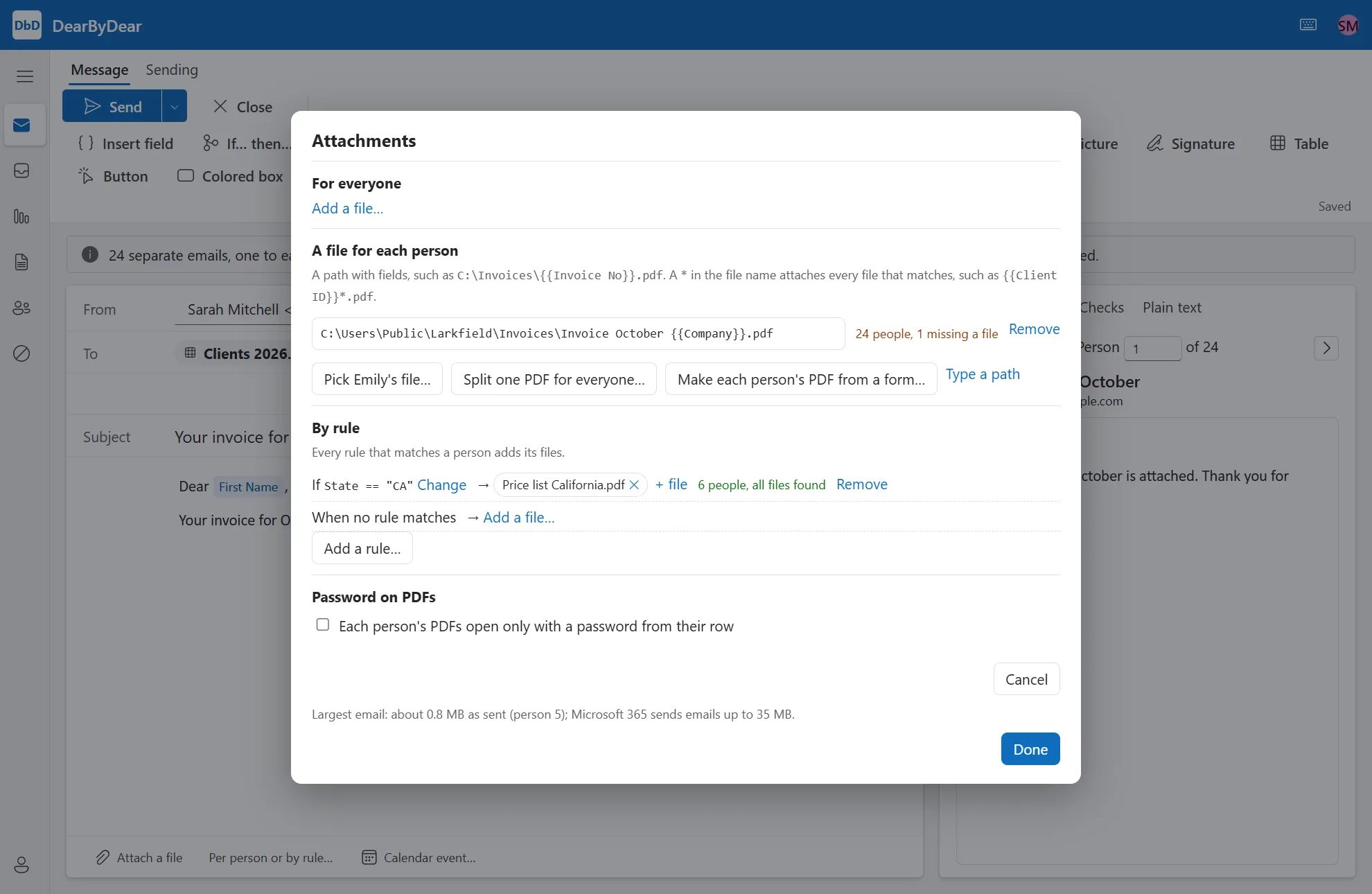
Every file checked before anything is sent
Beside each line, the dialog counts the people it found files for, and the missing ones. Before sending, the check lists who won’t get the email and why. They’re skipped; everyone else gets theirs.
24 people, 1 missing a fileEach person’s email is measured as it will be sent, against what your provider sends. Too big: that person is skipped, with what to do. Over about 20 MB, you’re warned that some recipients’ providers may refuse it.
Largest email · about 0.9 MB as sentPreview each email shows every person’s email exactly as it will leave, with its attachments and their sizes. Move through the list person by person.
← → through the listMail merge with attachments, compared
| What it does | Word and Outlook mail merge | DearByDear |
|---|---|---|
| The same file for everyone | No, links only | Yes |
| A different file for each person | No | Yes, by its name |
| Files chosen by rule | No | Yes |
| Several files for one person | No | Yes |
| Missing files found before sending | — | Yes, person by person |
| Each email’s size checked against your provider | — | Yes |
| Sends from Gmail and other mailboxes | Through a desktop mail program; with Outlook, classic only | Yes, from the mailbox itself |
More on the Outlook side: mail merge in Outlook.
Questions about attachments
Can I attach a different PDF to each email?
Yes. Name each file with something from that person’s row, such as their invoice number or company, and give DearByDear the path with the field in it: Invoice October {{Company}}.pdf. Or pick one person’s file, and DearByDear works out the path for everyone.
What happens if someone’s file is missing?
You see it before sending: the attachments dialog counts the missing files, and the check before sending lists who won’t get the email and why. Those people are skipped, and everyone else gets theirs.
How big can the attachments be?
As big as your mailbox’s provider sends: 25 MB of attachments for Gmail, 25 MB for Outlook.com and 35 MB for Microsoft 365 by default. About 20 MB reaches almost everyone. See the email limits of each provider. Gmail also limits the total going through its servers, 300 MB an hour and 1,500 MB a day, and DearByDear paces a merge with large files to keep under it.
Can one person get several files?
Yes. Files for everyone, the person’s own files and the files of every rule that matches them all go together. A * in a file name attaches every file that matches, such as all of a client’s invoices. A file named twice goes once.
Does it work with Outlook and Gmail?
Yes, with any mailbox DearByDear sends from: Microsoft 365, Outlook.com, Gmail or your own mail server. Each email leaves from your mailbox with its own files, and a copy goes into your Sent folder.
Can Claude set up the attachments?
Yes, in Claude Desktop with the DearByDear extension. When Claude sets up a merge for you, it can write the same paths and rules, and you see them in the attachments dialog before anything is sent.