Extract email addresses from Outlook
To extract email addresses from Outlook, classic Outlook can export one folder at a time to a CSV file, which you then clean up in Excel. DearByDear’s email address collector reads your mailbox itself: choose the folders, the dates and the words to look for, and it makes a list of the people, with their names and without duplicates, ready to export to Excel or to send a merge to.
Microsoft 365, Outlook.com, Gmail or any mail server · Reads only, moves nothing
- emily.carter@example.comEMILY CARTER · 4 EMAILS
- james.walker@example.comJAMES WALKER · 2 EMAILS
- daniel.price@example.comNAME FROM THE ADDRESS
- no-reply@shop.exampleLEFT OUT
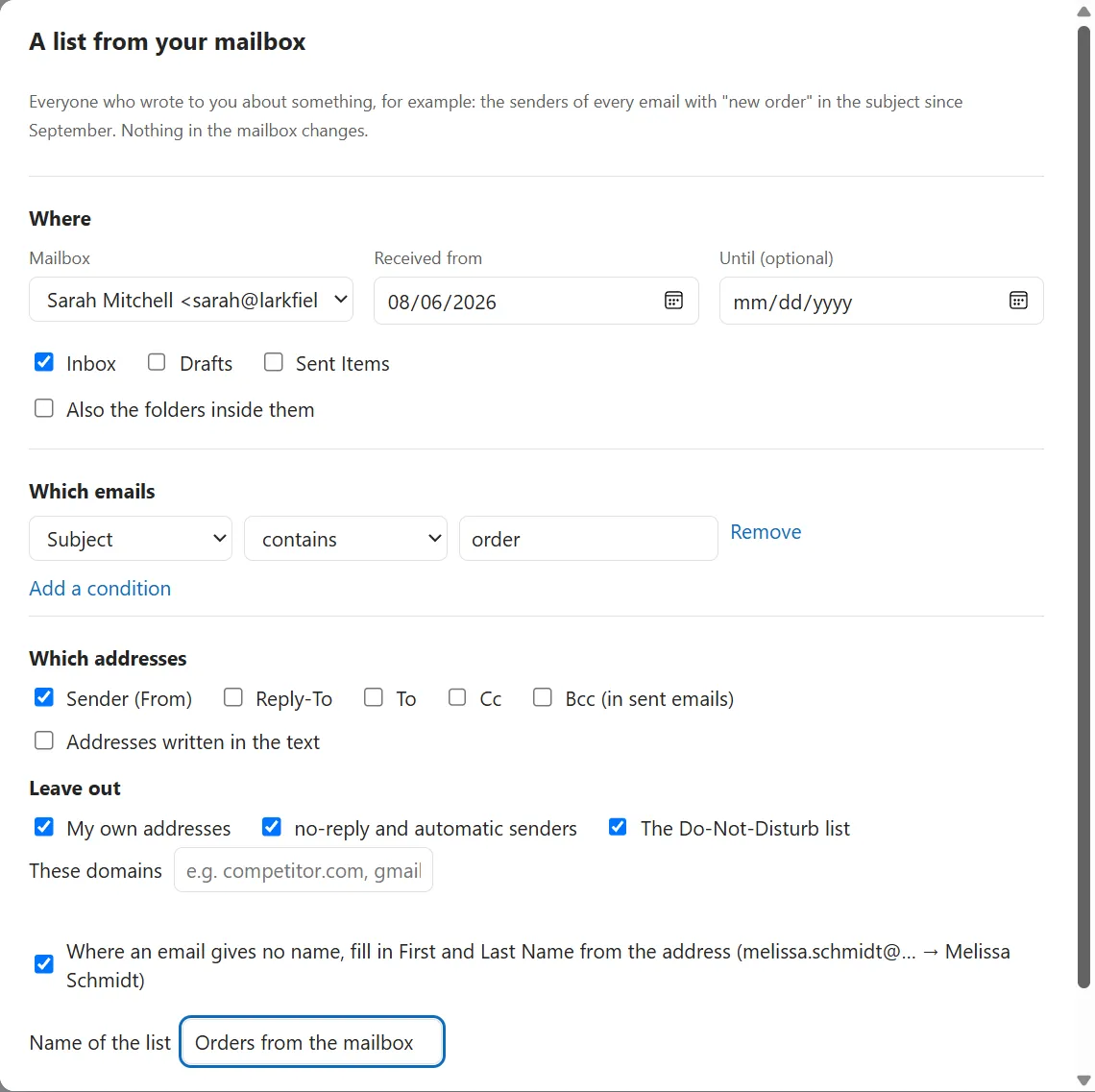
An example: everyone who sent “New order” since September
How to extract email addresses in classic Outlook
- STEP 1Start the exportFile → Open & Export → Import/Export → Export to a file → Comma Separated Values.
- STEP 2Choose one folderThe Inbox, say, or the folder your orders go to.
- STEP 3Keep the addressMap Custom Fields → Clear Map, then drag in From: (Address), and From: (Name) if you want names.
- DONEClean up in ExcelOpen the CSV file, remove duplicates, and delete your own, no-reply and other addresses you don’t want.
Those are the steps from Microsoft’s answer. A CSV export takes only the folder you chose, not the folders inside it, so Microsoft suggests exporting each one and putting the files together by hand.
From your mailbox to a list, in one go
- STOP 1Where to lookAny folders, with or without the folders inside them, between two dates.
- STOP 2What to look forWords in the subject, the sender, the recipients or the text, all of them or any. Or emails without certain words.
- STOP 3Whose addressesFrom, Reply-To, To, Cc, Bcc or written in the text. Leave out your own addresses, colleagues at your own domain, automatic senders, throwaway addresses, role addresses such as info@ if you choose, your Do-Not-Disturb list and domains you name.
- LISTEDA mailing listEach person once by default, with their name and how often they wrote, and a count of the duplicates combined. Or one row per email, for a list of orders. Export it to Excel, or send a merge to it.
The columns you get
| Column | What it holds |
|---|---|
| The address, once, however many emails it was in | |
| Name, First Name, Last Name | From the emails; where none gives a name, from an address shaped like one, if you want |
| Name from | Whether the name came from an email or was made from the address |
| Found in | Where the address was: From, To, Cc, Reply-To, Bcc or the text |
| Emails | How many of the emails it was in |
| First seen, Last seen | The dates of the first and the latest of those emails |
| Last subject | The subject of the latest one |
After the list is made
Update now adds the people from newer emails only, says how many were already on the list, and is offered again when you next write to it. People you took off stay off.
Update now · newer emails onlySearch the list, take someone off, put them on your Do-Not-Disturb list or copy their address, with a right-click.
Right-click a personIn Claude Desktop with the DearByDear extension, ask in words: “make a list of everyone who sent New order in September.” More on agentic mail merge with Claude.
The same list, in wordsExtracting addresses, compared
| What it does | Classic Outlook’s CSV export | DearByDear |
|---|---|---|
| Several folders, with the folders inside them | One folder at a time | Yes |
| Addresses written in the text | No | Yes |
| Each person once, with how often they wrote | No, by hand in Excel | Yes |
| One row per email, if that’s what you want | Yes: it exports one row per email | Yes, with Rows: One per email |
| One row per person, whatever +tag they used | No | Yes |
| Your own, colleagues’, automatic, throwaway and Do-Not-Disturb addresses left out | No, by hand | Yes |
| Names where the emails give none | No | From the address, marked |
| Updated later with newer emails only | Export again | Yes |
| Gmail and other mailboxes | No | Yes |
Questions about extracting addresses
Does it change or move my emails?
No. DearByDear only reads them: nothing is moved or deleted.
Which mailboxes can it read?
Microsoft 365 and Outlook.com, signed in with Microsoft, and Gmail or any other mailbox that offers IMAP. It reads the mailbox itself, so you don’t need Outlook open, or at all. For Gmail’s labels and Google’s own export, see extract email addresses from Gmail.
Can it find addresses written inside the emails?
Yes, such as the customer’s address in an online store’s order notification. You can ask for only the addresses that follow certain words, such as “Customer email:” so the store’s own addresses stay out.
Where do the names come from?
From the emails, where the sender or recipient gives one. Where none does, DearByDear can make one from an address shaped like a name (daniel.price@ becomes Daniel Price), and marks it in the Name from column so you can tell. What a mail service adds goes: “Emily Carter via LinkedIn” becomes Emily Carter.
Can I use the list outside DearByDear?
Yes. Export it to Excel or CSV, whole or after a search. Inside DearByDear it’s a mailing list like any other: send a merge to it, or update it with newer emails.
Which automatic addresses does it leave out?
With no-reply and automatic senders ticked, as it is to begin with: no-reply and notification addresses, mail servers’ own (mailer-daemon, postmaster), addresses a machine made for one email, such as forwarding or bounce-tracking addresses, and sending services’ own domains. Colleagues at your own domain and throwaway addresses (mailinator.com and the like) go too, and role addresses such as info@ and sales@ when you choose. The list says what it left out. To check any list’s addresses before a merge, see how to verify an email list.
What about an address with a +tag, like ana+shop@gmail.com?
To begin with, it’s merged with the plain address: one row per person, and at Gmail dots are ignored too. Or remove the tag where the provider delivers it anyway (Gmail, Outlook.com, iCloud, Fastmail, Proton, and companies on Google Workspace or Microsoft 365), or keep each form apart. A Collected as column shows the other forms. People add a tag on purpose, to sort their mail or see who has their address, so removing it sends your email to their main inbox.
Can I get one row per email instead of one per person?
Yes. Set Rows to One per email, and a person in several emails gets a row for each, with that email’s Date and Subject: a list of orders rather than of people. A merge to it still sends each address one email, from their first row. Update now adds the rows of newer emails, and Clean up never combines them.
Is this Easy Mail Merge’s Email Address Collector?
Its successor. What was a separate product is built into DearByDear, from the people behind both, and it reads Gmail and other mailboxes as well as Outlook’s. See moving from Easy Mail Merge.