Mail merge from Excel to email
A mail merge from Excel sends one email to each row of your spreadsheet, with that row’s details filled in. With Microsoft’s tools, the list goes from Excel through Word and classic Outlook. DearByDear reads the Excel or CSV file itself, finds the email column, checks every address, and sends each person their own email from your mailbox.
Excel and CSV · OneDrive, SharePoint and Google Sheets links · Free up to 50 people a merge
Sarah Mitchell
sarah@larkfield.example
Emily Carter
emily.carter@example.com
How to mail merge from Excel to Outlook with Word
- STEP 1Start in WordMailings → Start Mail Merge → E-mail Messages.
- STEP 2Choose the spreadsheetSelect Recipients → Use an Existing List, then the Excel file and its sheet.
- STEP 3Add the columnsInsert Merge Field for each column you want in the email, then Preview Results.
- SENTSend through OutlookFinish & Merge → Send E-mail Messages, which hands them to classic Outlook. Mail merge in Outlook, step by step.
What gets lost between Excel and Word
Word takes the value Excel stores, not what Excel shows. Microsoft says formatting in the spreadsheet isn’t kept: you add codes to each field in Word instead.
$1,240.00 → 1240Codes that start with zeros lose them, unless the column was formatted as text before the merge, as Microsoft’s guide warns.
00399 → 399Word sends to every row as it is: a mistyped address, someone listed twice, someone who asked not to be emailed. Nothing is checked first.
Duplicates and typos includedFrom your spreadsheet, one email per row
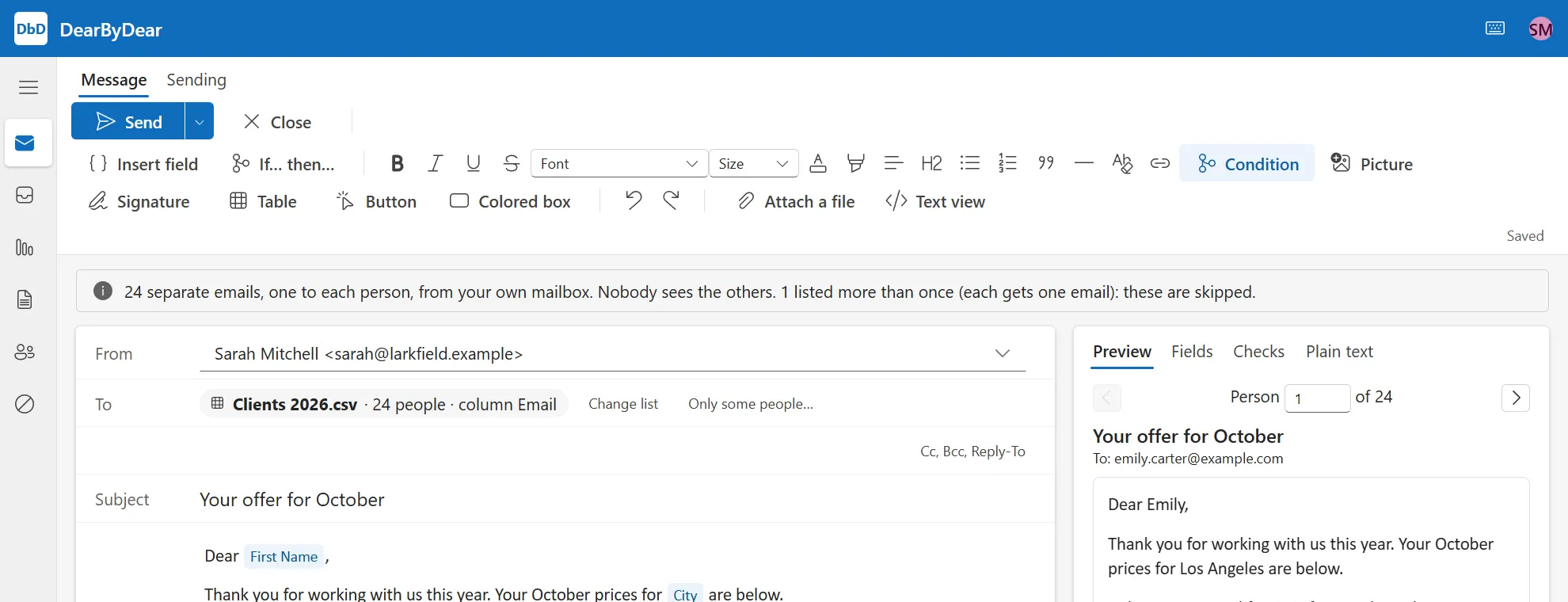
- STOP 1Choose the fileAn Excel or CSV file, or a link to one in OneDrive, SharePoint, Dropbox or Google Sheets, read again before each merge. Separators and text encoding are worked out by themselves.
- STOP 2Every address checkedThe email column is found, and each address checked: not valid, listed twice, on your Do-Not-Disturb list, or at a domain that can’t receive email. Likely typos get a one-click fix.
- STOP 3Columns become fieldsEach column is a field, filled in as Excel shows it on your computer. If the email uses other names, such as First Name for FirstName, DearByDear suggests the match.
- DELIVEREDOne by oneEach person’s own email from your mailbox, at a pace your provider accepts, with their own attachment if you like.
Your spreadsheet, as Excel shows it
DearByDear reads each cell the way Excel displays it on your computer, with your computer’s own date and number settings: $1,240.00 stays $1,240.00, 00399 keeps its zeros, and a date reads as Excel shows it. No codes to add. Rules still compare the real values, so “if Amount is over 1000” compares numbers and a date compares as a date.
To show a value differently in the email, a field can carry a format: {{Due | date:"dd/MM/yyyy"}}, or {{First Name | default:"there"}} for rows without a name.
A CSV list works the same way
DearByDear reads a CSV file exactly as it reads an Excel file: the email column found, every address checked, and each column a field in the email. A CSV brings its own separator and character set to work out first. See mail merge from CSV to email for what to watch for.
Mail merge from Excel, compared
| What it does | Word and Outlook | DearByDear |
|---|---|---|
| Excel and CSV lists | Yes | Yes |
| Numbers, dates and codes as Excel shows them | No, with field codes to fix it | Yes |
| Addresses checked before sending | No | Yes |
| Someone listed twice gets one email | No | Yes |
| A spreadsheet in OneDrive or Google Sheets, read again each time | No | Yes |
| Each person’s own attachment | No | Yes |
| Works without classic Outlook | No | Yes |
Questions about Excel lists
Do I need Excel installed?
No. DearByDear reads .xlsx and CSV files itself. Excel, Google Sheets or another program only makes the file.
Does the list need a header row?
Yes: the first row names the columns, such as Email, First Name and Company. Each name becomes a field you can put in the email, and DearByDear finds the email column by itself.
My list is a CSV from another system. Will it read?
Yes. The separator (comma, semicolon or tab), the text encoding and the decimal separator are worked out from the file, so exports from accounting or online store systems in other languages read as they should.
Can the list stay in OneDrive, SharePoint or Google Sheets?
Yes. Give DearByDear the file’s link, and it reads the list again before each merge, so the spreadsheet you keep updating is the one it sends to. People you took off the list in DearByDear stay off. For a sheet in Google Sheets, see mail merge from Google Sheets.
What happens to duplicates and wrong addresses?
Someone listed twice gets one email. Addresses that aren’t valid, are on your Do-Not-Disturb list, or whose domain can’t receive email are skipped, and you see who and why before sending. A likely typo, such as gmial.com, gets a one-click fix.
Can each person get their own attachment from the spreadsheet?
Yes. Name each file with a column from the list, such as the invoice number, and DearByDear attaches each person’s own. See mail merge with attachments.
Can I mail merge from a PDF?
It depends on what the PDF holds. If it’s your list, as a table of text, yes: DearByDear reads it into a mailing list and asks you to check each column afterwards. A scanned PDF has no text to read, so export the list as Excel or CSV instead. If it’s a file for each person, such as an invoice, yes, as an attachment: see the question above. If it’s a PDF form to fill in from your list, no: DearByDear writes emails, not PDFs.
Can I send to only some rows of the spreadsheet?
Yes, without changing the file: Only some people…, on the To line, takes a condition on any column, such as Paid is No or State is CA, and the merge goes only to those rows. See how to filter a mail merge’s recipients.