Mail merge in Outlook
A mail merge in Outlook sends one email to everyone on a list, each with their own name and details. Word can do a simple one through classic Outlook. DearByDear does the whole job from your Outlook mailbox: each person’s own attachment, sent at Microsoft’s pace, with the replies sorted.
Microsoft 365 and Outlook.com · Sign in with Microsoft, no password kept · Free up to 50 people a merge
Sarah Mitchell
sarah@larkfield.example
Emily Carter
emily.carter@example.com
How to do a mail merge in Outlook with Word
Classic Outlook can’t merge on its own: the mail merge is in Word, which hands each email to Outlook to send. These are the steps in Word for Windows, as Microsoft describes them.
- STEP 1Start the mergeIn Word, Mailings → Start Mail Merge → E-mail Messages.
- STEP 2Choose the peopleMailings → Select Recipients: an Excel sheet, or your Outlook contacts.
- STEP 3Write the emailAdd each person’s details with Greeting Line or Insert Merge Field.
- STEP 4Check a fewPreview Results shows the email as each person will get it.
- SENTSend through OutlookFinish & Merge → Send E-mail Messages: choose the email column, type the subject, pick HTML or plain text, then OK.
Word needs classic Outlook for Windows to send. The new Outlook and Outlook on the web can’t send a Word mail merge (Microsoft’s answer, July 2026). The new Outlook has a simpler mail merge of its own, which sends everyone a copy of the same email.
Where Word’s mail merge stops
Word can’t attach a file to the emails, let alone a different one for each person: “you cannot add attachments, but you can include links.” DearByDear does: a different attachment for each person.
Invoices, offers, certificates: by link onlyEach email goes to one address. You can’t copy in a colleague or an archive address.
To: one person, nobody elseThe subject is typed once, so it’s the same for everyone; fields can’t go in it.
“Your offer for October” × 742Every email goes to the Outbox together and leaves as fast as Outlook sends it: no start time, no pace, nothing spread over days.
742 emails · one click · one burstWith Outlook, it runs only through classic Outlook for Windows, installed on the same computer as Word and set as the email program.
Not the new Outlook, not the webReplies, bounces and out-of-office notes land in your inbox unsorted, and there’s no follow-up for those who didn’t answer.
You sort the answers by handMail merge from Outlook, one person at a time
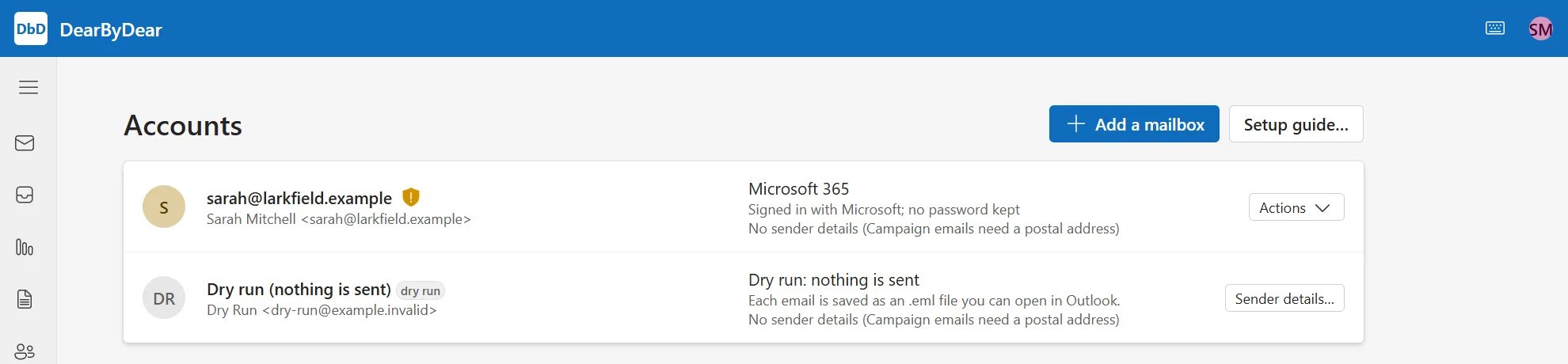
- STOP 1Sign in with MicrosoftYour Microsoft 365 or Outlook.com mailbox, in your browser. DearByDear keeps no password. A shared mailbox or an alias works too.
- STOP 2Choose the peopleAn Excel or CSV file, an Excel file in OneDrive or SharePoint read again before each merge, your Outlook contacts, or everyone who emailed you.
- STOP 3Write it, or start in OutlookWrite in DearByDear, or start from an email in your Outlook Drafts folder or a saved .msg or .oft file. Fields go in the subject too, and each person’s file is attached by rule.
- DELIVEREDSent from your mailboxAt a pace Microsoft accepts, with a copy in your Sent Items. Or first as drafts in your Drafts folder, to read in Outlook before they go.
Kept for you, merge after merge
Microsoft limits how much one mailbox sends. DearByDear counts every merge from the mailbox against those limits, spreads a longer list over several days, and if Microsoft says the limit is reached, it waits instead of failing. An email too big to send is flagged before the merge starts, person by person.
10,000 recipients a day per mailbox, and 30 emails a minute. A new organization can send to fewer people outside it in its first two months.
Exchange Online limits · checked November 1, 2026With a Microsoft 365 subscription, 5,000 recipients a day, and at most 1,000 people you haven’t written to before. Without one, fewer: Microsoft doesn’t give the number.
Sending limits in Outlook.com · checked November 1, 2026Microsoft 365 sends emails of up to 35 MB by default, unless your administrator set another size. Outlook.com takes 25 MB of attachments. Past that, Outlook says “The file you’re attaching is bigger than the server allows.”
Checked before sending, not afterEvery limit, the errors and what to do about them: Outlook’s sending limits.
Outlook mail merge, compared
| What it does | Word with classic Outlook | DearByDear |
|---|---|---|
| Sent from your own mailbox, with a copy in Sent Items | Yes | Yes |
| Your Outlook contacts as the list | Yes | Yes, by folder and category |
| Works if you use the new Outlook or Outlook on the web | No | Yes, it doesn’t depend on an Outlook app |
| A different attachment for each person | No | Yes |
| Cc and Bcc | No | Yes |
| Each person’s details in the subject | No | Yes |
| Text that changes by rule | Yes, with field codes | Yes |
| Sending spread over hours or days, within Microsoft’s limits | No, all at once | Yes |
| Drafts to read in Outlook before anything is sent | No | Yes |
| Replies, bounces and unsubscribes read back | No | Yes, for 30 days |
| A follow-up to those who didn’t answer, as a reply | No | Yes |
Questions about Outlook
Do I need Outlook installed?
No. DearByDear signs in to your Microsoft 365 or Outlook.com mailbox itself, so it works whether you use classic Outlook, the new Outlook or Outlook on the web. The emails then show in your Sent Items like any other.
Which versions of Outlook does it work with?
It works alongside Outlook 2016 and later: 2016, 2019, 2021, 2024, Microsoft 365 and the new Outlook. DearByDear doesn’t run inside Outlook; it sends from your mailbox. Exchange on your company’s own server needs IMAP and SMTP turned on.
How do I send a mass email from Outlook?
So that each person gets their own email, use a mail merge: Word’s, which sends through classic Outlook, or DearByDear, which sends from your mailbox whichever Outlook you use. Bcc is quicker, but everyone gets the same email, and one address put in To or Cc by mistake is seen by all. The three ways compared: send mass email in Outlook, one person at a time.
Can I send from a shared mailbox or an alias?
Yes. Choose the shared mailbox or the alias as the sender, and each email goes out from it.
Can I use my Outlook contacts as the list?
Yes: all of them, or the folders and categories you choose, with name, company and job title as columns. Update now reads them again. Contact groups can’t be read, because Microsoft doesn’t make them available to apps.
Will my IT department need to approve DearByDear?
It may. Some organizations let only an administrator approve an app that sends email for you. If yours does, Microsoft shows the request when you sign in, and it’s approved once.
Why is my Word mail merge stuck in the Outbox?
Word hands every email to classic Outlook at once, and Outlook sends them only while it’s open and online. If it can’t, they wait in the Outbox. DearByDear sends through your mailbox directly, at a pace Microsoft accepts, and shows how many are left and when it should finish, and why, if it paused itself. Like Outlook, it sends while it’s open, and carries on after a restart. More causes and fixes: mail merge not sending.
I used Easy Mail Merge for Outlook. Is this the same?
DearByDear is its successor, from the people behind it, as an app of its own. Its setup guide brings in your Easy Mail Merge templates, fields included, and your Do-Not-Disturb list. Easy Mail Merge customers get 25% off for their first 12 months. See moving from Easy Mail Merge.