How to email certificates to participants
Save the certificates as PDFs in one folder, each named with the participant’s name, and keep the attendance list with their emails. DearByDear sends each participant their own email from your mailbox with their certificate attached, and names anyone whose file it can’t find before anything goes. Each is an individual email, not a Bcc, and the files are found as in any mail merge with attachments.
An attendance list · a PDF per participant · your own mailbox
What you need
The attendance list as a spreadsheet: the names that are in the certificates’ file names, and each participant’s email.
| First Name | Last Name | Course | |
|---|---|---|---|
| Emily | Carter | emily.carter@example.com | Customer Service Essentials |
| James | Walker | james.walker@example.com | Customer Service Essentials |
| Olivia | Bennett | olivia.bennett@example.com | Customer Service Essentials |
The certificates, one PDF each, in one folder, each named with the participant’s name exactly as the list has it. Making them is a step of its own, in whatever tool you design them with:
- Certificate Emily Carter.pdf
- Certificate James Walker.pdf
- Certificate Olivia Bennett.pdf
Step by step
- Bring in the attendance list
New merge, then Who gets it?: A new list, and the spreadsheet.
- Your mailbox, and when
From which account?: your mailbox, as a Personal email. When does it go out?: Right away, or Later, the morning after the course.
- Write the email
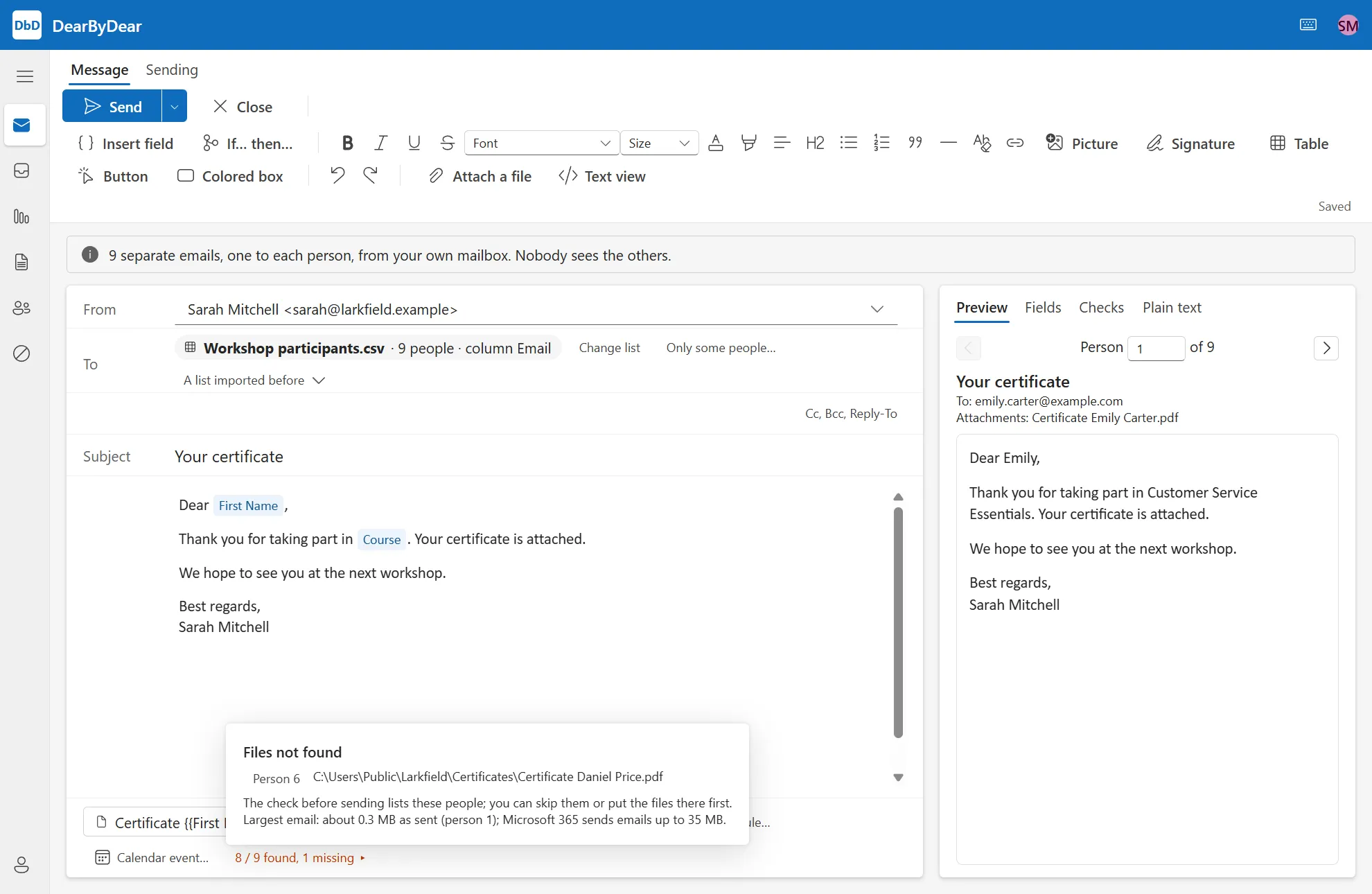
The email: Write a new email, or Start from a template… and Thanks for coming. Insert field adds First Name and Course.
- Attach each certificate
Per person or by rule…, then A file for each person. Pick one participant’s certificate, and DearByDear works out the name for everyone: Certificate {{First Name}} {{Last Name}}.pdf.
- See who has no file
Under the email, 8 / 9 found, 1 missing opens the list of files not found. Put the missing certificate in the folder, or leave that person out at the check.
- Check, then send
Check and send: Preview each email shows anyone’s email with their certificate. Confirm, and each participant gets theirs.
The email
Dear First Name,
Thank you for taking part in Course. Your certificate is attached.
We hope to see you at the next workshop.
Best regards,
Sarah Mitchell
First Name from each person’s row in your list
Good to know
- DearByDear sends the certificates you’ve made. Any tool that saves one PDF per person, with the name in the file, will do.
- Names have to match: a list that says Dan where the file says Daniel won’t find it. The list of files not found shows which.
- A large group goes out within your mailbox’s daily limits, over more than a day if it must; the When step shows when the last one will go.
- Thanks and questions come back to your mailbox, and show in Responses beside the email each person was sent.
Questions about emailing certificates
How do I send certificates to many people without them knowing who else got one?
Each participant gets an email of their own, addressed only to them, so nobody sees who else took part. There is no Bcc to forget.
Can I send them from Outlook or Gmail?
Yes: from Microsoft 365, Outlook.com, Gmail or any mail server. Each email leaves from your address, and a copy lands in your Sent folder.
Can the text change from course to course?
Yes. A Course column put in with Insert field names each person’s course, and If, Then, Else in a mail merge gives one course a sentence of its own.
What if a certificate is missing?
The count under the email shows it before you send, and its list of files not found names the file DearByDear looked for. Check and send lets you skip those participants and send the rest.
How big can a certificate be?
As big as your mailbox sends. The attachments dialog shows the largest email’s size against your provider’s limit, so a heavy file shows up before sending.