Mail merge from CSV to email
A mail merge from CSV sends one email to each row of your file, with that row’s details filled in. Word reads a CSV only after some preparation. DearByDear reads the file itself, works out its separator and character set, and sends each person their own email from your mailbox.
CSV and text files · OneDrive, SharePoint and Google Sheets links · Free up to 50 people a merge
Sarah Mitchell
sarah@larkfield.example
James Walker
james.walker@example.com
How to mail merge from a CSV file in Word
- STEP 1Bring the file into Excel firstA comma- or tab-delimited file works as a mail merge source on its own, but Microsoft’s own guide says to import a CSV or .txt file into Excel first, so its numbers, dates and codes can be formatted before the merge.
- STEP 2Start the merge in WordMailings → Start Mail Merge → E-mail Messages.
- STEP 3Choose the fileSelect Recipients → Use an Existing List, then the prepared file. Microsoft’s own page lists comma- and tab-delimited text files among the sources mail merge accepts.
- SENTSend through OutlookFinish & Merge → Send E-mail Messages, which hands the emails to classic Outlook, as Microsoft describes.
What goes wrong with CSV, especially
A CSV carries no record of its own character set. Opened with the wrong one assumed, a name typed with an accent, such as “François” or “José,” comes out as “François” or “José.” Microsoft’s own fix is to choose “Unicode UTF-8” by hand when importing the file.
José → JoséComma is the default, but a CSV from an accounting program or an online store set to another country often uses a semicolon instead. Open it with the wrong one assumed, and every column shifts.
Name;Email;Company → one columnA code that starts with zeros, such as an account or postal code, loses them once it’s read as a number. Microsoft’s guide says to format the column as text first, after the file is brought into Excel.
00399 → 399A CSV has no date type: a value is only the characters typed into it. A spreadsheet has to guess whether “03/04/2027” means March 4 or April 3, and can guess wrong.
03/04/2027 → ?How DearByDear reads a CSV
- STOP 1Separator and character set, found by themselvesComma, semicolon, tab or pipe, and the file’s own character set, from a byte-order mark where the file has one or worked out from the bytes otherwise.
- STOP 2Every value kept as typedA CSV has no cell types, so each value is kept exactly as the file has it: no rounding, no stripped zeros, no reparsed date.
- STOP 3Rules compare dates and numbers correctlyA condition such as “Due before 2026-12-01” compares a text value as a date, and “Amount over 1000” compares it as a number, never as text. You’re warned where a value isn’t one.
- DELIVEREDEvery address checkedThe email column is found, and each address checked: not valid, listed twice, on your Do-Not-Disturb list, or at a domain that can’t receive email. Likely typos get a one-click fix.
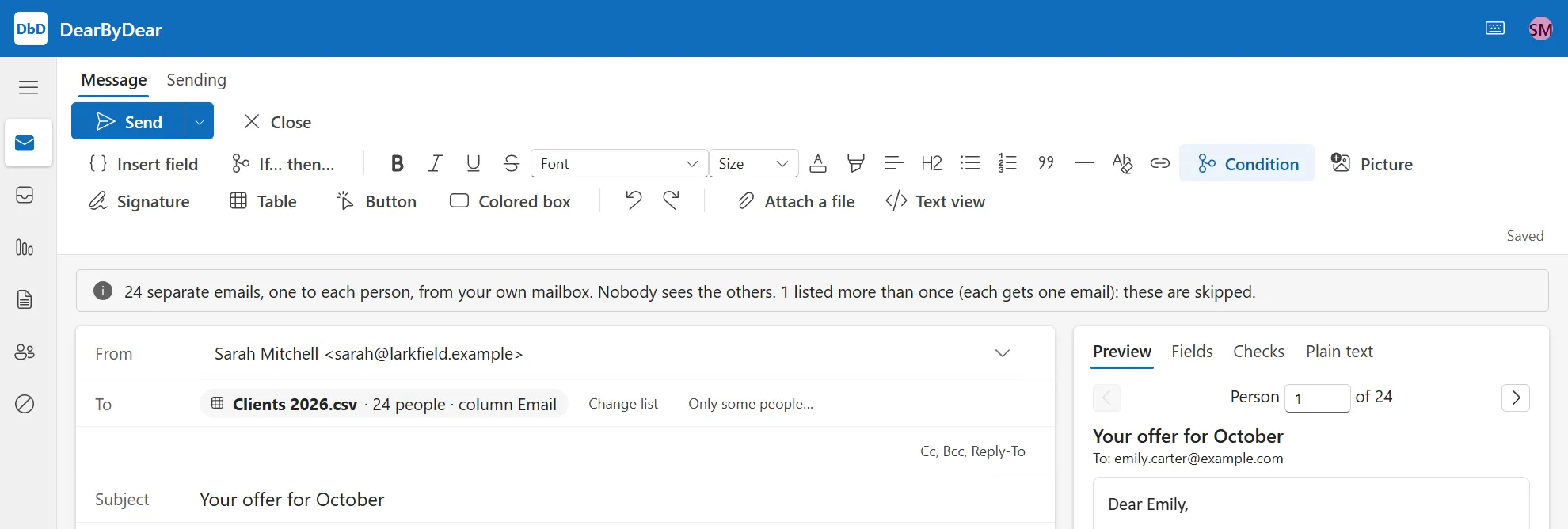
Where your CSV came from
Most CSV files started somewhere else: an export from Excel or Google Sheets, from a CRM or an online store, or from an accounting program. Mail merge from Excel to email works the same way, since DearByDear reads both files itself.
A CSV can also be a list of leads exported from a prospecting or cold-email tool, each with its own columns for company, title and more. For sending to a list like that, see personalized cold email from your own mailbox. A Hunter leads list can also come in without a CSV: From Hunter… on Mailing lists connects your Hunter account with its API key.
Mail merge from CSV, compared
| What it does | Word and Outlook | DearByDear |
|---|---|---|
| CSV and text files read | Yes, after importing into Excel | Yes, directly |
| Separator worked out by itself | Chosen in Excel’s import | Yes |
| Character set worked out, accents kept | Chosen by hand in Excel’s import | Yes |
| Leading zeros and codes kept as typed | No, unless formatted first | Yes |
| Addresses checked before sending | No | Yes |
| Each person’s own attachment | No | Yes |
| Also merges to printed letters and labels | Yes | No, email only |
Questions about CSV lists
Do I need Excel to open a CSV file?
No. DearByDear reads .csv and .txt files itself and finds the email column by itself. Excel, Google Sheets or another program only makes the file.
Does the file need a header row?
Yes: the first row names the columns, such as Email, First Name and Company. Each name becomes a field you can put in the email.
Can the CSV stay in OneDrive, SharePoint or Google Sheets?
Yes. Give DearByDear the file’s link, and it reads the list again before each merge, so the file you keep updating there is the one it sends to.
What happens to duplicate rows and bad addresses?
Someone listed twice gets one email. Addresses that aren’t valid, are on your Do-Not-Disturb list, or are at a domain that can’t receive email are skipped, and you see who and why before sending.
Can each person still get their own attachment from a CSV list?
Yes. Name each file with a column from the list, such as an account number, and DearByDear attaches each person’s own. See mail merge with attachments.
Can I clean up a CSV list before sending?
Clean up… in the list’s … menu leaves out automatic senders, colleagues at your own domain, role addresses such as info@, throwaway addresses and addresses at a domain that can’t receive email. It fixes typos such as gmial.com first, so a mistyped address is repaired rather than dropped, and merges addresses with a +tag. It shows what would change first, every typo fix included, and nothing changes until you click Clean up. A second row for the same person goes only when it adds nothing, so two rows with different details both stay. More on how to verify an email list before sending.
Can I send to only some rows of the CSV?
Yes, without changing the file: a condition on any column, such as State is CA or Paid is No, sends the merge only to those rows. See mail merge filter.
Sources
Each provider’s own pages, read on November 8, 2026. If Microsoft describes the steps differently now, theirs is right.