Mail merge with an Outlook template
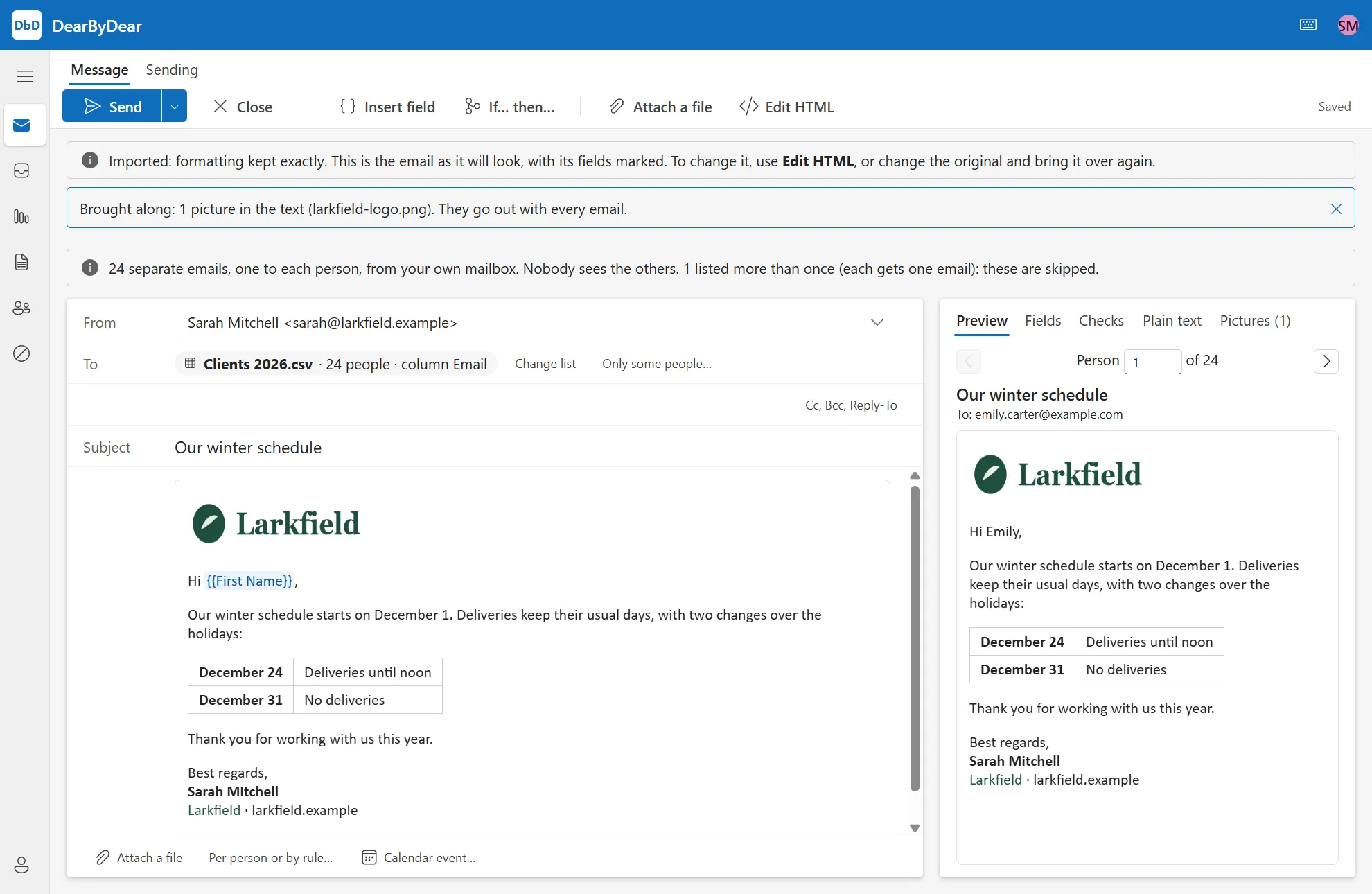
To mail merge with an Outlook template, write the email in Outlook as you always do, with your signature, logo and tables, and type {{First Name}} where each person’s name goes. Save it as a draft, or as an Outlook template (.oft). DearByDear opens it as the merge’s email, its formatting kept exactly and its pictures and attachments included, and sends each person their own copy from your mailbox.
A draft · .oft · .msg · .eml · HTML · Formatting kept · Free up to 50 people a merge
How it works
- STOP 1Write it in OutlookYour signature, pictures and tables, and a field in double braces wherever the email changes: {{First Name}}, {{Company}}.
- STOP 2Save itAs a draft, as usual. Or as an Outlook template: in classic Outlook, File → Save As → Outlook Template.
- STOP 3Open it in DearByDearNew merge → Use a draft from your mailbox. Or Import an email file… for an .oft, .msg, .eml or HTML file.
- CHECKEDSee what came alongThe pictures and attachments it brought, which go out with every email. Then choose your list.
How to create an email template in Outlook
- CLASSIC OUTLOOKSave As an Outlook TemplateWrite a new email, then File → Save As, and under Save as type choose Outlook Template. It’s saved as a .oft file.
- NEW OUTLOOKMail templateIn the new Outlook and Outlook on the web, write the email, then Mail template → Save email as template. It needs a qualifying Microsoft 365 subscription.
- FOR A MERGEInto DearByDearImport the .oft file, or open the template, save it as a draft and use the draft.
The steps are Microsoft’s. A template in the new Outlook stays in your account rather than in a file, which is why it goes into a merge as a draft.
What comes along, and what doesn’t
The email as Outlook made it, passed through as it is: fonts, colors, tables, the layout of your signature. Nothing is “cleaned.”
Formatting kept exactlyPictures in the text and attached files come along and go out with every email. For each person’s own file, see a mail merge with attachments.
Brought along: 1 pictureWho it goes to comes from your list, one email each. Addresses in the draft’s To line are noted, not imported.
To: from your listNo email of your own yet? Start from one of the email templates for a mail merge, by goal, and make it yours.
Written in Outlook. Merged without Word.
In classic Outlook, File → Save As → Outlook Template saves an email as a template; the new Outlook and Outlook on the web have Mail templates, with formatting, images, tables and attachments (Microsoft), and the new Outlook for Windows can save a template as an .oft file, with a qualifying Microsoft 365 subscription (Microsoft). Word’s mail merge, though, sends a message written in a Word document, and can’t add attachments (Microsoft). With DearByDear, the email you laid out in Outlook is the email that goes.
Questions about Outlook templates
Can I use an Outlook template (.oft) for a mail merge?
Not with Word’s mail merge, which sends the message you write in a Word document. In DearByDear, Import an email file… opens the .oft as the merge’s email, and it goes from your own mailbox, as in a mail merge in Outlook without Word.
Which drafts can it open?
A draft in the Drafts folder of Microsoft 365 or Outlook.com, of Gmail with an app password, or of any mailbox over IMAP. The draft stays where it is. For Gmail, first make a Gmail app password.
How do I put each person’s name in?
Type the column’s name between double braces where it goes, {{First Name}}, in Outlook as you write. DearByDear marks it as a field. If your list calls the column something else, it suggests the matching column and, once you confirm, renames the field everywhere.
Is my signature kept?
Yes, as part of the email: its text, its formatting and its logo. Pictures in the text go out inside every email, not as attachments. To add one of your signatures in DearByDear instead, see mail merge signature.
Can I change it after importing?
Yes, with Edit HTML in DearByDear, or change it in Outlook and bring it over again. Either way, the preview shows each person’s email before anything goes.
Is it in the free version?
Yes. The free version has every feature, for merges of up to 50 people.
Sources
Each provider’s own pages, read on October 30, 2026. If they describe Outlook or Word differently now, theirs is right.