Mail merge signature
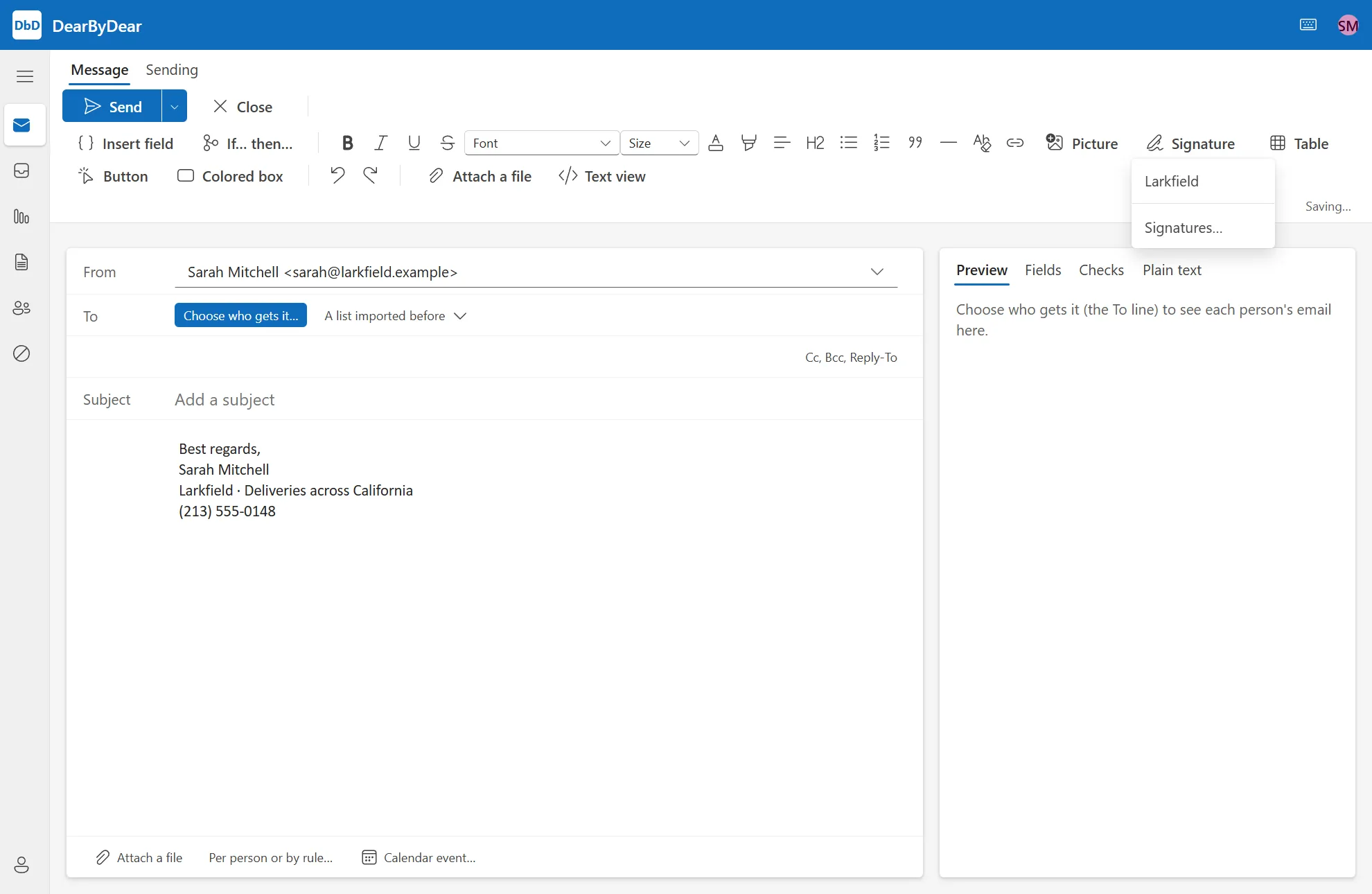
A mail merge signature is the sign-off at the end of each email a merge sends, and Word’s own mail merge doesn’t carry one: Microsoft’s support forum says plainly that signatures “are not added to mail merges by default,” so people add theirs to the Word document by hand, logo included. DearByDear keeps signatures of their own: several, each for one account or for any account, with one default that’s already in a new email you write. Any of them can go in from the editor’s Signature menu, under Signatures… in an account’s Actions on mail merge in Outlook and the rest.
Several signatures, one default per account · A logo from a draft · Free up to 50 people a merge
- LarkfieldSARAH@LARKFIELD.EXAMPLE · DEFAULT
- Short sign-offANY ACCOUNT · DEFAULT
- From the October draftSARAH@LARKFIELD.EXAMPLE · LOGO INCLUDED
Does Word’s or Outlook’s mail merge carry the Outlook signature?
No. Word’s mail merge to email sends a plain or HTML message built from the Word document alone, and Microsoft says plainly that “you cannot add attachments” to it. The signature Outlook adds to a message you write by hand isn’t part of that document, so it isn’t part of the merge either. Asked why a signature is missing, Microsoft’s own Q&A forum answers directly: “Signatures - email signatures - are not added to mail merges by default. Add it to the merge template instead.” A newer thread on the same forum meets the same gap, with the same fix: put the signature, as text, straight into the document the merge sends.
A logo follows the same rule, since there’s nowhere else for it to go. On the Q&A forum, the fix for a missing logo is to insert the picture into the mail merge document itself, set to “In-line with text,” and to choose HTML rather than plain text when finishing the merge. Word has no field for a logo on its own; it’s a picture in the document, the same as any other.
Several signatures, each for one account or for any
Under Signatures…, in an account’s Actions on Accounts, each signature has a name, the account it’s for (or Any account) and, for its account, whether it’s the default. Write one in DearByDear, or bring one over from your own mail app:
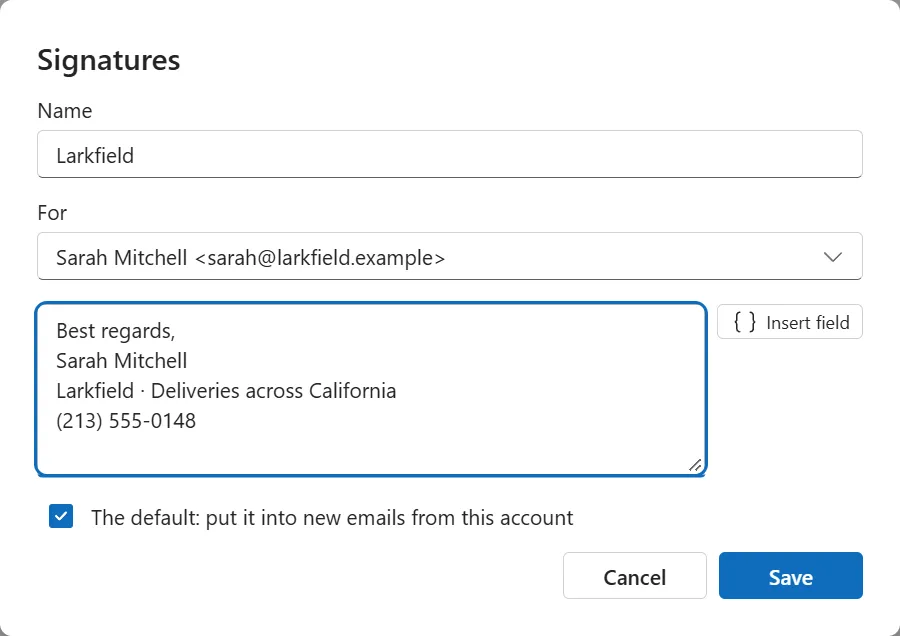
Plain text with formatting, and fields from Insert field, such as the sender’s name or address, from Sender details… on Accounts.
Best regards,{{$sender_name}}
Write only the signature, logo included, in a new email in your own mail app, and save it as a draft. Then pick it in DearByDear; the draft stays where it is, and its pictures come along.
Logo kept, as writtenOne account, so it matches that mailbox, or Any account, for every mailbox without a default of its own.
sarah@larkfield.example · Any accountChecked, it goes into the new emails you write from that account, one default at a time: setting another takes its place.
The default: put it into new emails from this accountAlready in a new email, under an empty line
An account’s default signature is in a new email the moment you start writing it, the way it is in Outlook: under an empty line, and you can change it, like any other text, as you write. With no account chosen yet, the default for any account goes in instead; choosing an account later doesn’t swap it out. The email editor’s ribbon has every other signature you have, in case another fits better.
What carries none by itself
An email imported from Outlook or another file, and every email in the template gallery, carries none of your signatures by itself: each already has its own closing line, written in by whoever made it. A draft you bring in with a mail merge from an Outlook template keeps the signature that was already typed into it; put one of your own on it from the Signature menu, the same as on any other email.
With Claude
In Claude Desktop with the DearByDear extension, Claude can list your signatures, save a new one, written out or from a draft, and put any of them into an email it’s writing, the same signatures the app shows. Putting one into a draft Claude is writing for you is Claude’s own step, not something DearByDear adds on its own.
A mail merge signature, compared
| What it does | Word and Outlook | DearByDear |
|---|---|---|
| Your Outlook signature in the merge | No; add it to the Word document by hand | Not Outlook’s: a signature of its own goes in by itself |
| A logo in the signature | An inline picture in the document, set to “In-line with text” | Yes: from a draft with its logo, or a picture added to one written in the app |
| One sign-off, or several | One document, the same sign-off for everyone it emails | Several signatures, one default for each account, any put in from the menu |
| Changing it later | Edit the document, for every merge it sends from then on | Change the signature once; emails already sent keep what they had |
Questions about mail merge signatures
Does Word’s mail merge to email include my Outlook signature?
No. Microsoft’s own support pages say mail merge to email “cannot add attachments,” and its Q&A forum answers the signature question directly: “Signatures - email signatures - are not added to mail merges by default. Add it to the merge template instead.” In DearByDear, a signature is part of the merge itself, not Outlook’s: set a default for the account, and it’s already in a new email.
How do I add a logo to a mail merge signature?
In Word, Microsoft’s Q&A forum says to insert the picture into the mail merge document itself, set to “In-line with text,” and to choose HTML, not plain text, when finishing the merge. In DearByDear, From a draft… brings a signature’s logo over as you wrote it, or add a picture to one written in the app.
How many signatures can I have, and which one is used?
As many as you want, each for one account or for any account. One default per account goes into the new emails you write from it; with no account chosen yet, the default for any account goes in instead. Any signature, default or not, can be put into an email from the Signature menu.
Can I bring over the signature I already use in Outlook or Gmail?
Yes, with From a draft…: write only the signature, logo included, in a new email in your own mail app, save it as a draft, and pick it in DearByDear. The draft stays where it is; its pictures come along.
Does an email imported from Outlook, or a gallery template, get a signature too?
Not by itself. An email you bring in from a file or a draft keeps whatever sign-off it already has, and a gallery template carries its own closing line. Put one of your signatures on it from the Signature menu, the same as on any email.
Can Claude put a signature into an email it writes?
Yes, in Claude Desktop with the DearByDear extension: Claude can list your signatures, save a new one (written out or from a draft) and put any of them into an email it’s writing, the same signatures you manage in the app.
Is it in the free version?
Yes. The free version has every feature, signatures included, for merges of up to 50 people.
Sources
Each provider’s own pages, read on November 5, 2026. If Microsoft describes it differently now, theirs is right.
- Microsoft: use mail merge to send bulk email messages
- Microsoft Q&A: mail merge and signature · updated September 3, 2020
- Microsoft Q&A: no default email signature when running mail merge from Word · updated November 23, 2024
- Microsoft Q&A: mail merge with company logo · updated October 10, 2024