The email editor
The email editor is where a merge’s email is written, with your list beside it. Insert field puts a column where each person’s details go, and If… then… shows text to some people only. The side pane shows each person’s email as it will arrive, and checks it across the whole list.
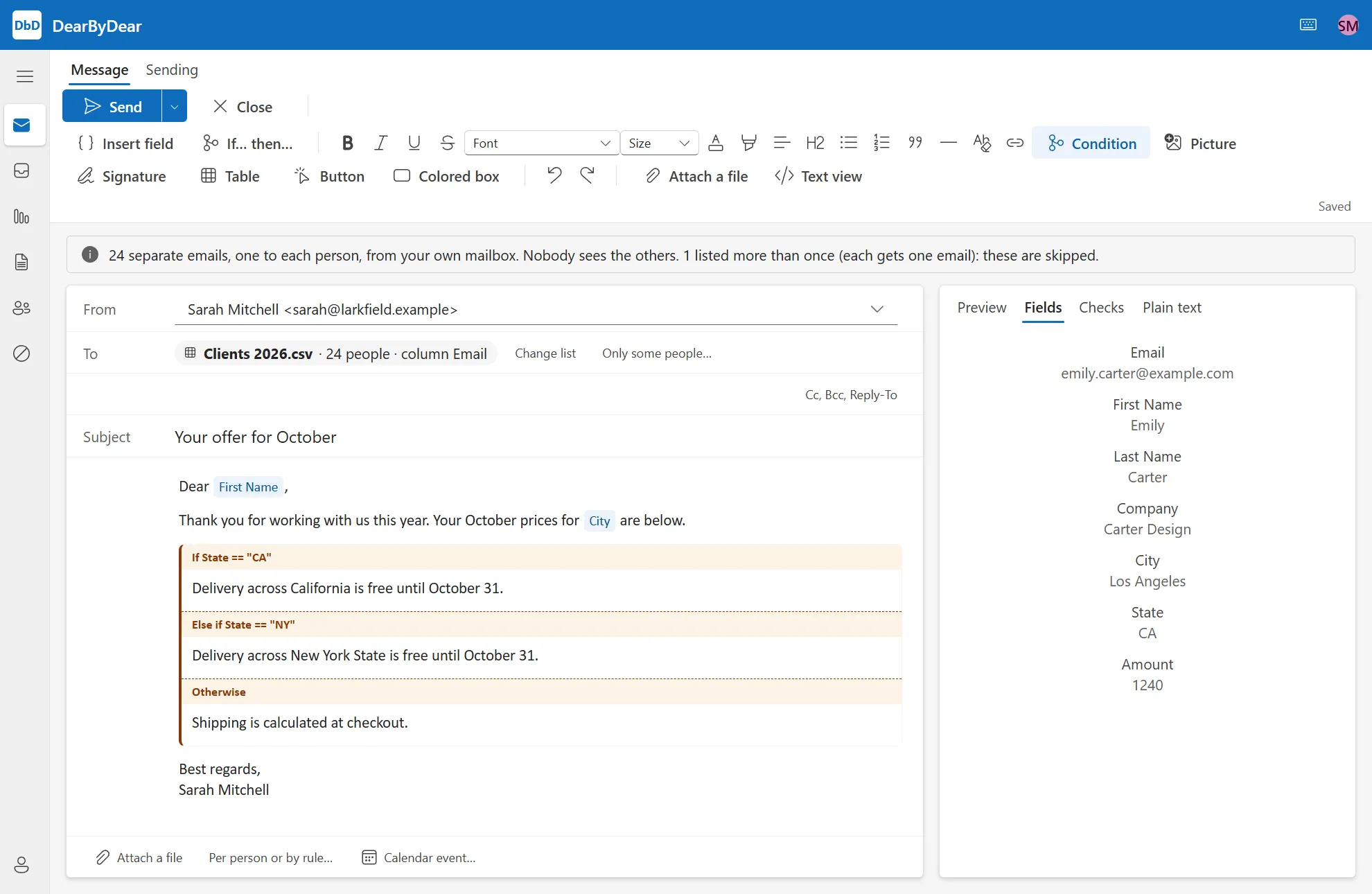
What you see
- Insert field
A column of your list where the cursor is, such as {{First Name}}, or where you right-click. Typing {{ opens the same list. Your business name, postal address, today’s date and the merge’s name are there too.
- If… then…
Text for some people only: one version If State is CA, another Else if NY, a third Otherwise. Select a few words first, and the rule holds just those. See If, Then, Else in a mail merge.
- The email
The email itself, its fields marked. Formatting, a picture, a table, a button or a colored box come from the ribbon above.
- The side pane
Preview, Fields, Checks, Plain text, and Pictures for an email imported from Outlook or a file. Preview steps through the list: Person 1 of 24, with Previous record and Next record.
- Fields
Your list’s columns, each with the value of the person shown. Click one to put it in the email. Click a field in the email, or right-click it and choose Change this field…, and a box above the columns shows its name, such as First Name: change it, or add a format after it such as
| default:"there", then Apply. Remove takes the field out.
What you can do here
How do I add a picture, a table or a button?
Picture, Table or Button on the ribbon. A table starts at two by three, and its menu adds rows and columns or borders; a button reads Read more until you change it, and asks for its link. A picture over 500 KB, which goes out with every email, is offered smaller.
What does a right-click in the email offer?
The merge’s own menu, in the subject, the email, its HTML, its plain text and a follow-up’s text. Insert field puts a column of your list where you clicked, and If… then… goes around the words selected. On a field in the email, Change this field…, which opens it in the Fields tab, and Remove this field; inside a rule, This condition has the ribbon’s Condition items. Then Cut and Copy. Paste with Ctrl+V; Shift+right-click gives the usual menu, with spelling suggestions.
What does Checks look for?
For the person shown, anything that would stop their email, such as a field with no value. Across the list, how many people each version of a rule reaches, a version nobody gets (“A typo in the value?”), and people who match none.
What if the email has a field my list doesn’t?
“The list has no column for a field in this email.” Choose the column each one is in your list, then Use these columns: the field is renamed everywhere in the email.
Can I write the plain-text version myself?
Yes: in Plain text, tick Write the plain-text version myself. After that, changes to the email don’t reach it until you untick the box.
How do I change an email imported from Outlook?
It’s shown exactly as it will look, its fields marked. Change it with Edit HTML, or in Outlook, and bring it over again: see mail merge with an Outlook template.
How do I attach a calendar event?
Calendar event…, beside Attach a file: a dialog for Title, Starts, Ends, Where and Notes, each with Insert field for the list’s fields. Once saved, it shows as a chip with its title and start, and the pencil on the chip opens the dialog again. Each person’s copy arrives as its own file to add to their calendar, not a meeting request, as the mail merge calendar invite page explains in full.
How do I add a signature?
The ribbon’s Signature menu lists your signatures and ends with Signatures…, the same dialog as an account’s Actions → Signatures… on Accounts. Write one in the app, with fields such as the sender’s name, or choose From a draft… to bring over one written in your own mail app, logo included. More on signatures in a mail merge.
Good to know
- It saves by itself as you type; Ctrl+S saves now. The ribbon’s end says Saving…, Saved or Not saved.
- In a merge, Save, in the menu beside Send, or Ctrl+S, keeps the email and the merge around it: the list, the account and the options. To carry on later, open the menu beside New merge and choose Continue the merge, or find it in Merges, under Drafts; the email is also under Templates. It’s kept for 30 days after its last change.
- Attach a file adds a file for every email; Per person or by rule…, under the email, opens the Attachments window.
- Calendar event…, beside Attach a file, shows the saved event as a chip with its title and start, with a pencil to change it. Each person’s email carries their own event as an .ics file named after it: an event to add to their calendar, not a meeting request.
- The ribbon’s Signature menu puts one of your signatures at the end of the email. An account’s default signature is already there, under an empty line, in a new email written in the app, and can be changed like any other text. An email imported from Outlook or a file, or one from the gallery, carries none by itself.
- Inside a merge, the email is named after its subject and kept under Templates.
- On the To line, Only some people… sends the merge to only the people a condition on a column chooses; the preview then steps through them alone.