Sending options
How a merge goes out is set on the email’s Sending tab: Personal or Campaign, how fast, at what hours and on which days, when it starts, drafts to review, and the follow-up. Once a merge is paused, Sending options… in Merges changes its pace, hours, days and follow-up.
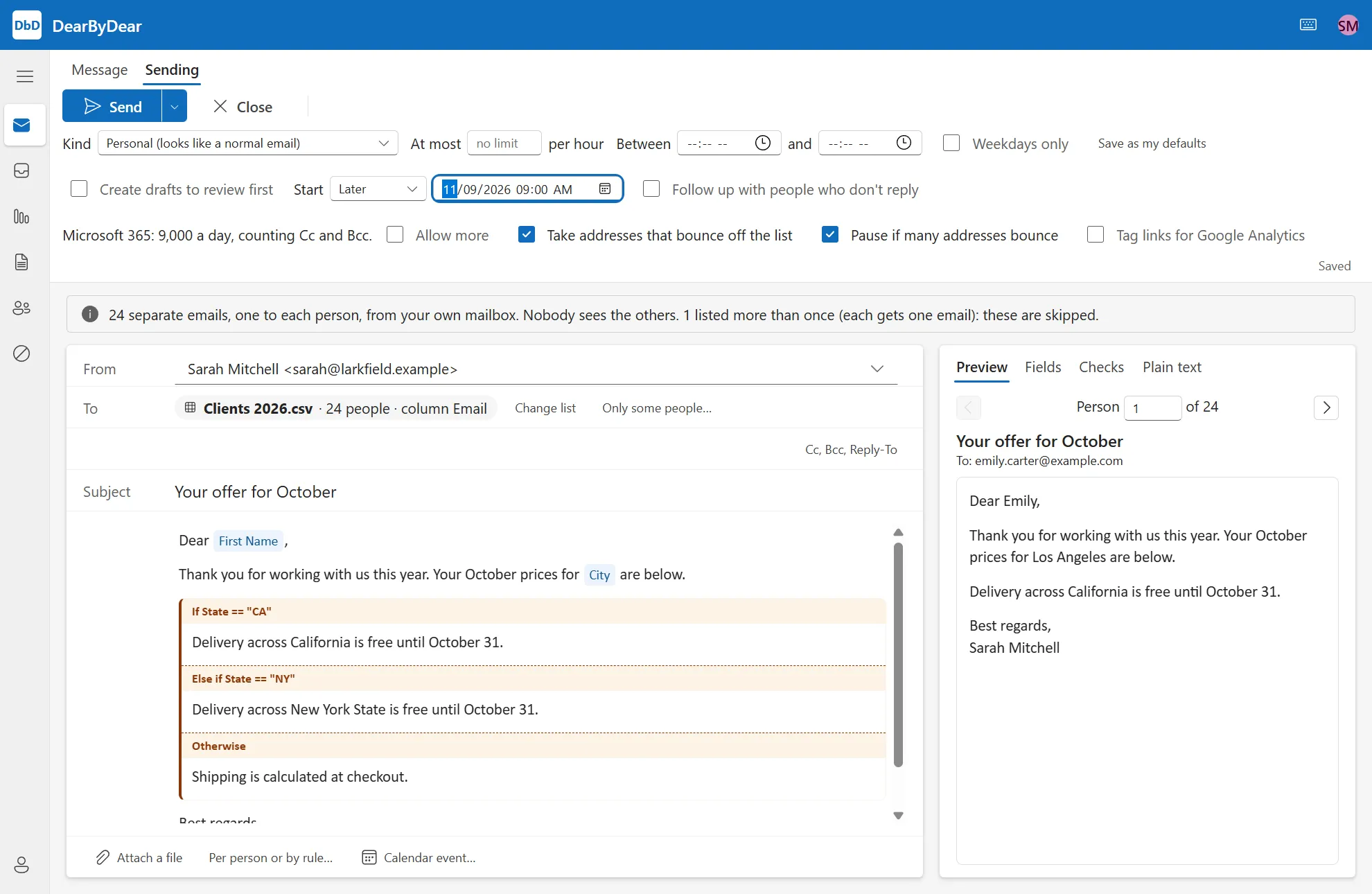
What you see
- Kind
Personal, which looks like an ordinary email, or Campaign, which adds an unsubscribe link and a footer with your business name and postal address. A Personal merge to more than 500 people gets a warning in Check and send that suggests Campaign; it doesn’t stop it.
- Pace
At most so many per hour or per day, between two times of day, and on weekdays only if you tick it. A day’s number is spread evenly over the sending hours, or sent as fast as allowed with the rest the next day. The number starts from your provider’s limit where it’s known, such as 450 a day for a free Gmail account. Left empty: no limit of your own, at any time.
- Save as my defaults
Keeps the limit, the hours and the days for your next merges: “Saved: new merges start with these.”
- Drafts to review
Create drafts to review first: each email goes to your Drafts folder instead, until you choose Send the reviewed drafts on the merge.
- Start
Right away, or Later, with the date and time beside it. Send ▾ → Send later… sets it too.
- Follow-up
Follow up with people who don’t reply: the box above the email asks how many days after the email, or before or after a date in each person’s row, and what it says. Add another follow-up…, beside that box, adds a second and a third.
- Provider limit
How many your provider sends from this mailbox, which DearByDear keeps to. Allow more, if your account allows more, also clears the number filled in from it: if the provider refuses, DearByDear learns its limit and waits.
What you can do here
How do I send more slowly?
Type a number in At most … per hour, such as 30. Your provider’s hourly and daily limits are kept anyway; this is for going slower than it allows.
How do I send a set number a day?
Choose per day beside At most, and type the number. Then choose spread evenly over the sending hours, or as fast as allowed, then wait for the next day. With 450 a day between 9:00 AM and 5:00 PM, one goes about every 64 seconds.
How do I send only during office hours?
Between 9:00 AM and 5:00 PM, and tick Weekdays only. A merge waiting for its hours says “Waiting until …” in Merges, with when the next email goes. More in schedule a mail merge.
How do I add a follow-up?
Tick Follow up with people who don’t reply. The box above the email asks after how many days, 3 to begin with, and what it says: “Just checking you saw my last email.” until you write your own, with Insert field for each person’s details. For a second or third, Add another follow-up… beside its text opens a short dialog: when it goes and what it says. To time any of them from a date in each person’s row instead of the email before it, choose days before their date in or days after their date in, then the column, such as Due Date. See automatic follow-up emails.
How do I send to people who join the list later?
Tick Keep sending: people who join the list later get it too, on the Sending tab or in the steps. Each time the list changes, at its automatic update or with Update now, the people new on it get this email and its follow-ups in a merge of their own, without you being asked again. Stop it in Merges. See mail merge from Google Sheets for a sheet that keeps growing.
How do I send each person’s results to a sheet or a CRM?
Tick Post each person’s results to a web address, and paste the address of a Clay webhook table, or of a Zapier, Make or n8n hook. With their columns from the list adds each person’s row. Send a test posts a made-up result and says whether the address answered. Then each result, sent, replied, bounced, unsubscribed or done, is posted there once, as it happens. More on mail merge tracking.
How do I change the options of a merge that’s already going?
Pause it in Merges, then Sending options… in the toolbar: the limit, the hours, the days, the link tagging and the follow-up. Save, then Resume: “The merge goes on with these when you resume it.”
How do I read each email in my mailbox first?
Tick Create drafts to review first. Start disappears, because the drafts are sent when you say so: a mail merge to drafts.
Good to know
- Save as my defaults keeps the limit, the hours and the days, not the kind, the start or the follow-up.
- Remove bounced addresses from the mailing list is ticked to begin with: an address that doesn’t exist leaves the mailing list, and goes on the Do-Not-Disturb list either way. A refusal because of the sending domain, a block list or the content doesn’t count against the address.
- Pause if more than 5% of the emails bounce (addresses that don’t exist) is ticked to begin with, and its percentage can be set from 1 to 50. Once 20 have gone out and at least 3 have bounced that way, the merge pauses and says why, so you can check the list. Sending on to such a list harms your sender reputation. After you resume it, only emails sent from then on count.
- Keep sending is only for a list that changes, such as one from a Google Sheet’s link, your contacts or your mailbox. It can’t be ticked for a list imported from a file, or with Create drafts to review first, since nobody would review the emails of the people who join later.
- With Keep sending ticked, Check and send says that everyone who joins the list later gets the email and its follow-ups, and its confirmation reads: “I have checked the preview and want to send these emails, and to people who join the list later.”
- Results are posted straight from your computer, while DearByDear or Claude Desktop with the DearByDear extension is running, and a post that doesn’t get through is tried again for about a day. The address has to start with https, unless the hook runs on your own computer.
- Tag links for Google Analytics adds tags to the links to your own website, so your analytics can tell which visits came from the merge.
- For a Campaign, Footer in chooses the footer’s language: the email’s own, told from its text, or one of eight languages, from English to Chinese (Simplified) and Hindi.