Keyboard shortcuts
DearByDear uses the keys you know from Outlook: Ctrl+N for a new merge, Ctrl+1 to Ctrl+7 for its windows, Ctrl+Enter to send, F9 to check for replies. Press ? anywhere outside a text box to see them all.
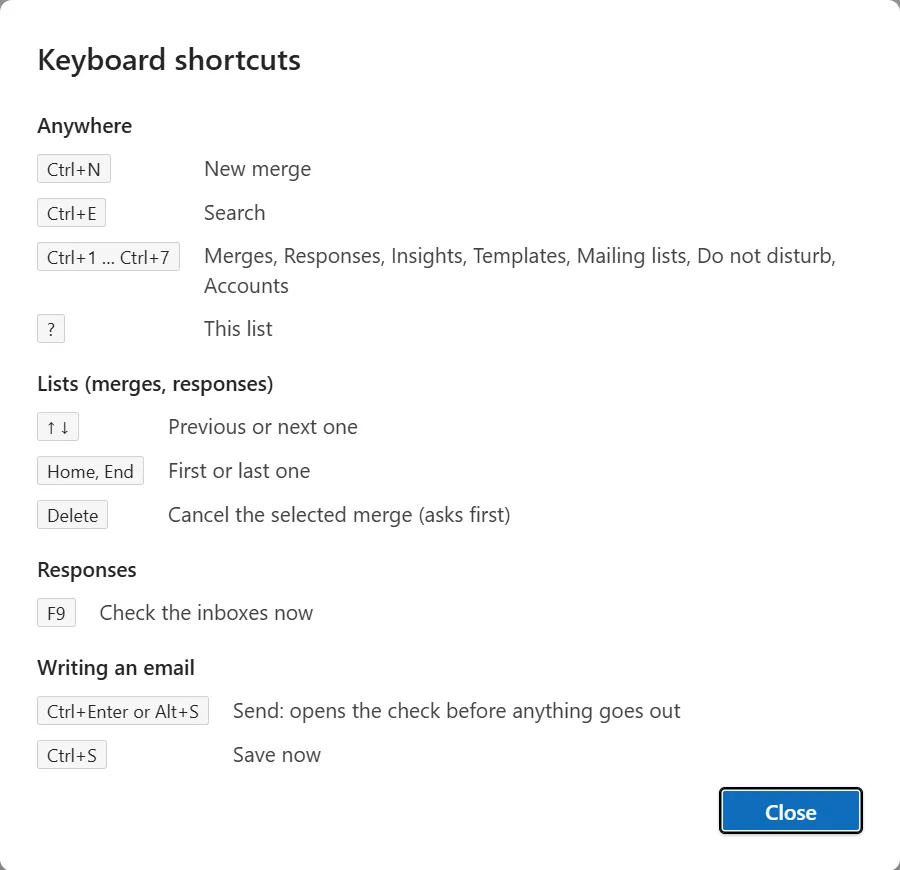
What you see
- Anywhere
Ctrl+N, a new merge; Ctrl+E, search; Ctrl+1 to Ctrl+7: Merges, Responses, Insights, Templates, Mailing lists, Do not disturb and Accounts; ?, this list.
- Lists (merges, responses)
↑ and ↓ for the previous or next one, Home and End for the first or last, and Delete to cancel the selected merge, which asks first.
- Responses
F9 reads the inboxes now, without waiting for the next check.
- Writing an email
Ctrl+Enter or Alt+S: Send, which opens the check before anything goes out. Ctrl+S saves now.
What you can do here
How do I see the shortcuts?
Press ? anywhere outside a text box, or Ctrl+/, or the keyboard button in the title bar. The list closes with Close or Esc.
Why does a shortcut do nothing?
No shortcut runs while a window or a menu is open over the app. ? doesn’t work while you type in a field, but keys with Ctrl or Alt, and F9, do. Ctrl+N doesn’t start a new merge while you’re writing an email.
Does Delete cancel a merge straight away?
No: it asks first, and works only on a merge that hasn’t finished. Cancel merge, in the Merges window’s toolbar, does the same.
Does Ctrl+Enter send the merge?
It opens Check and send, the last look before anything goes; nothing is sent until you tick the box there and choose Send.