Preview a mail merge before sending
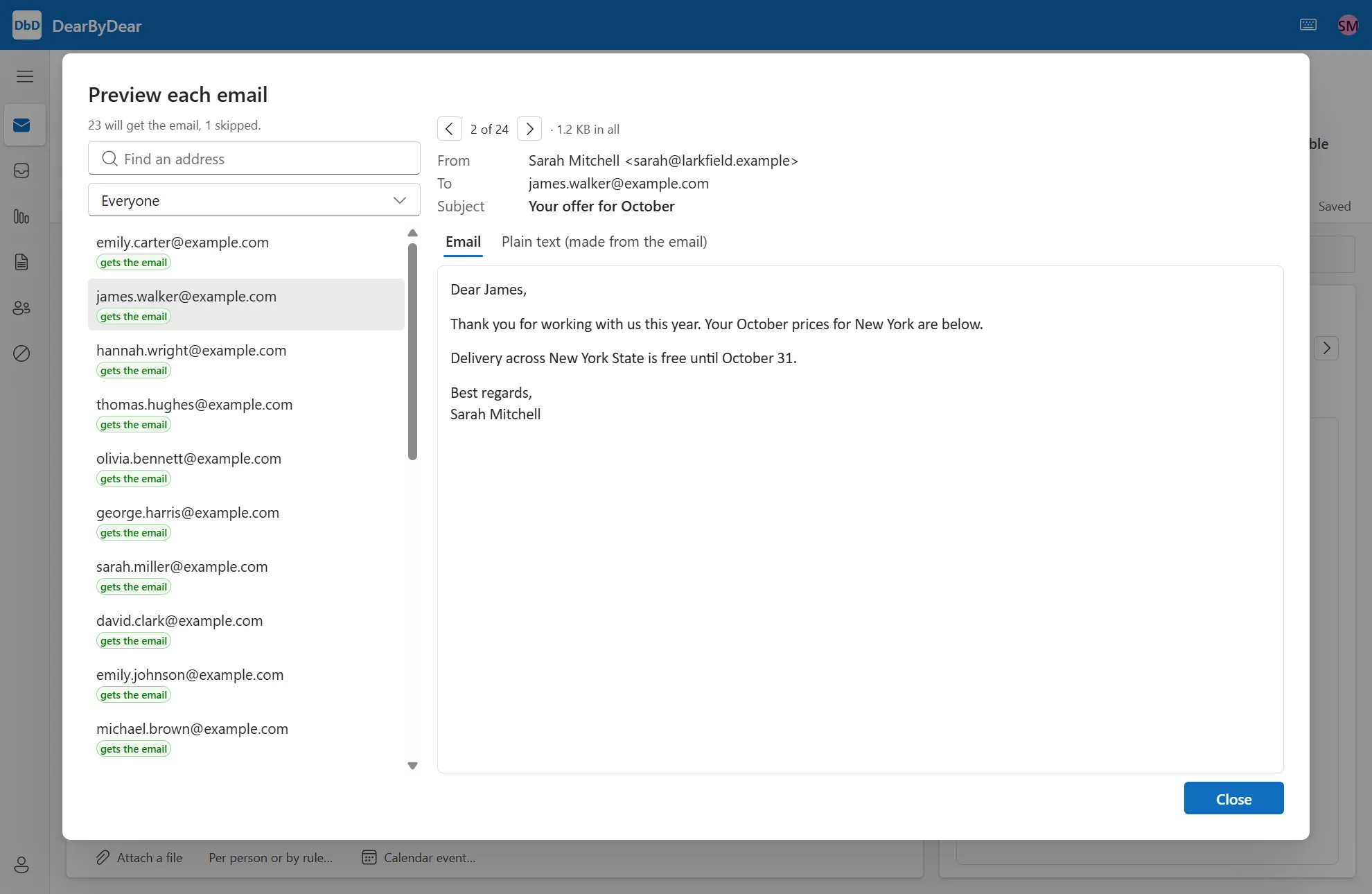
Before a mail merge goes, DearByDear shows every email as its person will get it: their fields filled in, the right version of each If, Then, Else rule, their own file attached. It says who is skipped and why, sends you a test, and sends nothing until you tick that you’ve checked. Word’s Preview Results steps through the list one person at a time.
Every email · Who is skipped and why · A test to yourself · Free up to 50 people a merge
How it works
- STOP 1Send opens the checkSend, or Ctrl+Enter, sends nothing yet: it opens Check and send.
- STOP 2Read the summaryHow many get the email, who is skipped and why, when it starts and how long it takes, and the follow-ups, if there are any.
- STOP 3Preview each emailEveryone on the list, each marked “gets the email” or why not; each email as it will be sent, its plain-text version and its size.
- CONFIRMEDTest, tick, sendSend a test to myself, if you like. Then tick “I have checked the preview and want to send these emails”: only then does it go.
Who is skipped, and why
The same address on two rows gets one email, from the first row. The check says how many it found.
listed twice: gets the email onceAnyone on your Do-Not-Disturb list: people who unsubscribed, addresses that bounced for good, those you added yourself.
on the Do-Not-Disturb listAn address that isn’t one, a domain that can’t receive email, or a file not found for them, as in a mail merge with attachments. Each is listed with its row.
Row 12: attachment not foundAn email too large for your mailbox to send is flagged before the merge starts, with its size against your provider’s limit, among the email sending limits of each provider.
Word shows one record at a time. Then it sends.
In Word, Preview Results and then Next or Previous show the names and addresses in your letter, and Finish & Merge → Send E-mail Messages sends them all (Microsoft). There is no test to yourself first, and no file attached for each person: Word’s mail merge can’t attach files.
| What it does | Word’s mail merge | DearByDear |
|---|---|---|
| See each email | Next and Previous, one at a time | Everyone listed; find an address |
| A test to yourself | — | Send a test to myself |
| Each person’s own file, found | No files attached | Checked for everyone |
| Each email’s size against your provider’s limit | — | Before it starts |
Questions about previewing
How do I preview a mail merge in Word?
On the Mailings tab, Preview Results, then Next or Previous to step through the list. Word turns it on once the document has a recipient list, so if it’s grayed out, choose Select Recipients first.
Can I send a test email to myself?
Yes. In the check before sending, Send a test to myself sends the first person’s email, as they would get it, to the address you send from.
Can I see the plain-text version?
Yes: each email in Preview each email has a Plain text tab, the version made from the email for mail apps that show no formatting. You can also write your own in the editor.
What if some people have a problem?
The check lists them by row, with what’s wrong: an address that isn’t one, a field with no value, a file not found, an email too large to send. Fix the list and check again, or tick Skip them and send the rest.
Can I read every email in my mailbox before it goes?
Yes: a mail merge to drafts. Tick Create drafts to review first, in the Sending tab, and each email goes to your Drafts folder, addressed and personalized; change or delete any there, then Send the reviewed drafts.
Is it in the free version?
Yes. The free version has every feature, for merges of up to 50 people.
Sources
Each provider’s own pages, read on October 30, 2026. If it describes Word differently now, theirs is right.