Mailing lists
Mailing lists holds the lists your merges go to: from an Excel or CSV file, a web address, your Outlook or Google contacts, or your mailbox. Open one to see its people, unsubscribe someone, or check its addresses before you send.
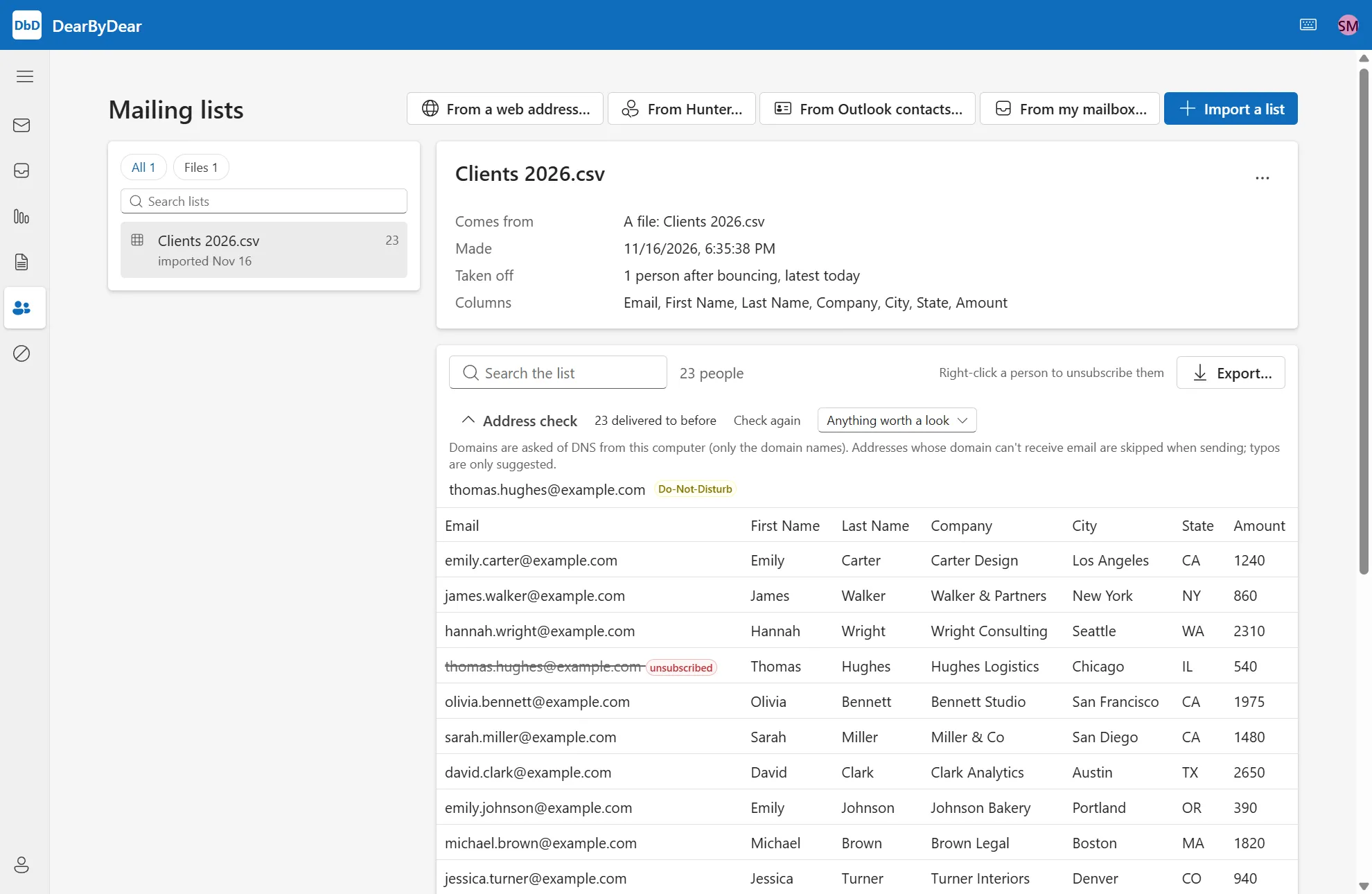
What you see
- New lists
From a web address… (a Google Sheet, a OneDrive or Dropbox link), From Outlook contacts…, From Google Contacts… (the file Google Contacts exports), and From my mailbox…, everyone who emailed you about something.
- Import a list
An Excel or CSV file, its first row naming the columns, or a PDF with the list in a table.
- Your lists
Every list, with how many people and where it comes from. Tags such as Files or Mailbox, one for each kind of list you have, and Search lists narrow them down. Choose one, and the right side shows where it comes from, when it was made or last updated, its columns and, after a merge, who was taken off after bouncing.
- More
Rename…, Duplicate, Export… and Delete…. Merges already made from a list keep their own copy of its people.
- The people
Everyone on the list, searchable. Right-click a person to unsubscribe them, take them off this list, copy their address, or forget them.
- Address check
How many you’ve emailed before, and anything worth a look: domains that can’t receive email, possible typos, role addresses like info@, throwaway ones, people on the Do-Not-Disturb list.
What you can do here
How do I bring a list up to date?
A list from a web address, your Outlook contacts or your mailbox has Update now, and a web list is read again before each merge as well. Update automatically…, in its … menu, reads it again at a set time: every day, on weekdays or on the days you choose. That happens while DearByDear is open or in the tray, and a time missed while it was closed runs once at the next start. A list from a file comes in again with Import a list. When an update from a web address or your contacts brings a row for an address already on the list, that row is left out, the first one kept, and the update says so: “2 already on the list, left out.” A merge with Keep sending ticked, one of its sending options, goes to the people each update brings.
How do I use a Google Sheet?
From a web address…, with a sheet shared as “Anyone with the link.” It’s read again from there before each merge, so the sheet stays the list you edit. See mail merge from Excel or a sheet.
How do I make a list from Google Contacts?
From Google Contacts… says how: in Google Contacts, Export, then Google CSV. Choose the exported file, and if your contacts have labels, take everyone or only one label, such as Clients. Each contact with an email address becomes a row, with their name, company and labels; those without one are left out and counted. The list is a copy, so export again for a newer one.
How do I clean up a list?
Clean up… in the list’s … menu leaves out automatic senders, colleagues at your own domain, role addresses such as info@, throwaway addresses and addresses at a domain that can’t receive email. It fixes typos such as gmial.com first, so a mistyped address is repaired rather than dropped, and merges addresses with a +tag. It shows what would change first, every typo fix included, and nothing changes until you click Clean up. An address whose domain hasn’t been checked yet stays, and Check them now asks DNS about those domains.
Can I import a list from a PDF?
Yes, if the PDF holds the list as a table of text rather than as a picture. Import a list rebuilds the table from where the text sits on each page. It leaves out a header repeated on every page, and the page’s title, date and page number; without a header row, the columns are named Column 1, Column 2 and so on. A note afterwards asks you to check that each column holds what its name says. A scanned PDF has no text to read: export the list as Excel or CSV instead, or run text recognition (OCR) on it first.
How do I make a list from my mailbox?
From my mailbox…: the folders, the dates, conditions on the subject, the sender or the text, and which addresses to take. Rows: One per person combines duplicates, as most lists want; One per email gives each email its own row, with its Date and Subject, for a list of orders. Update now adds what newer emails bring. More on how to extract email addresses from Outlook, and on the Gmail email extractor.
What happens to an address that bounces?
An address that doesn’t exist comes off the list the merge was made from, unless the merge’s sending options say otherwise, and goes on the Do-Not-Disturb list either way. A temporary bounce, such as a full mailbox, leaves it where it is until the third. A refusal because of the sending domain, a block list or the email’s content doesn’t count against the address at all.
Can I sort a list?
Yes: click a column’s header above the list’s people. Once sorts it A to Z, smallest first; again, Z to A; a third time, back to the list’s own order, and an arrow shows which. Numbers, amounts and Excel dates sort by value, and empty cells go last. Search and Export… follow the order shown.
How do I take someone off?
Choose the list, right-click them, and Remove from this list…: merges already made keep them. Unsubscribe (Do-Not-Disturb) keeps every merge from them instead.
Good to know
- The address check asks DNS about the domains only, from this computer: never whether a mailbox exists. Typos are only suggested.
- Ctrl+5 opens Mailing lists.