A new merge
New merge opens five steps: who gets it, from which account, when, the email, and Check and send. Start with the list, and the email can use its columns from the first word. Nothing goes out before the last step, where you check it.
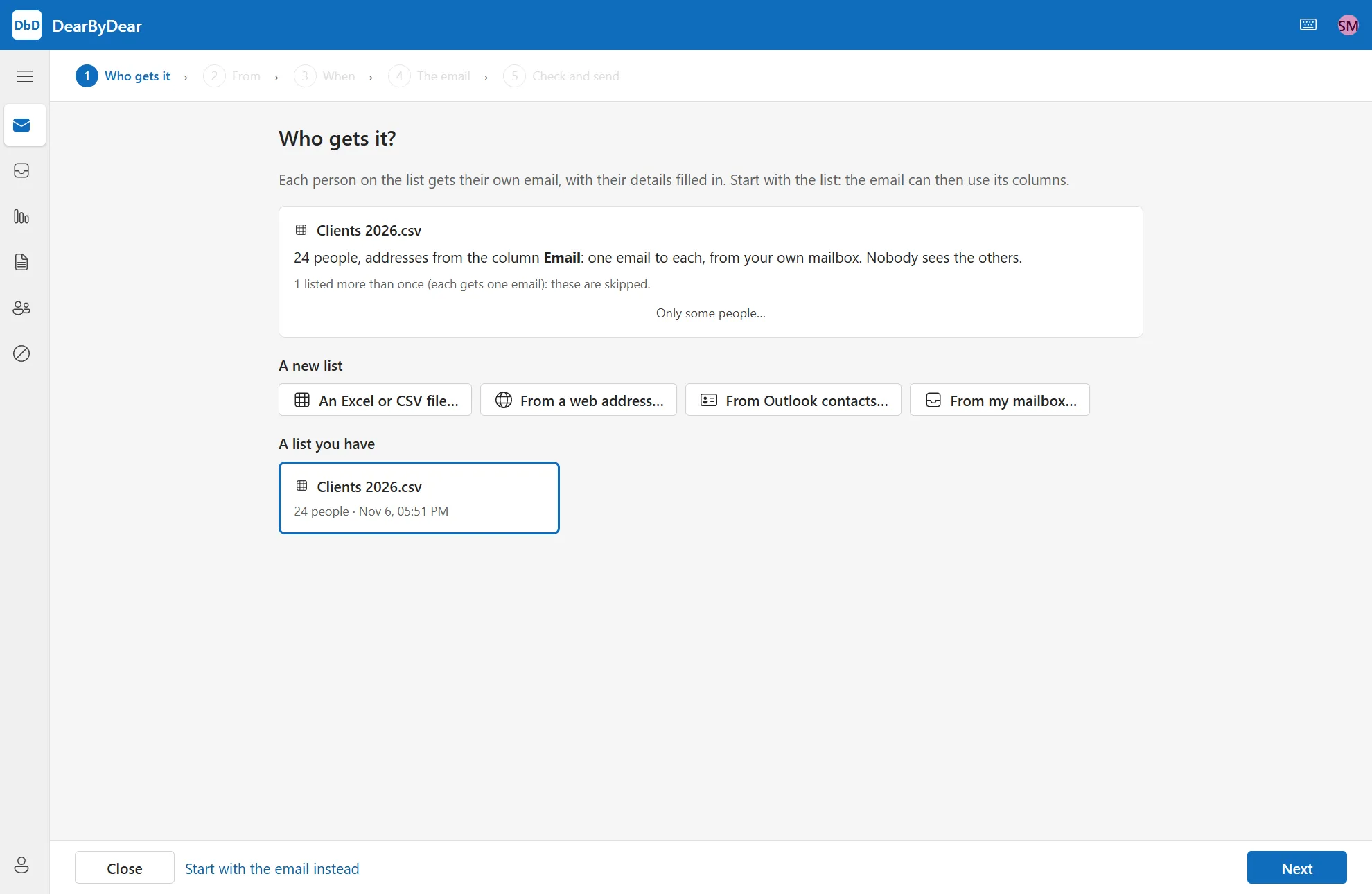
What you see
- The steps
Who gets it, From, When, The email, Check and send. A step you’ve reached opens again from here, with nothing lost.
- A new list
An Excel, CSV or PDF file, a web address (a Google Sheet, OneDrive or Dropbox link, read again before each merge), your Outlook contacts, or people who emailed you. More on lists in mail merge from Excel.
- A list you have
The lists you’ve used before, each with how many people, its email column and when it came in.
- The chosen list
What DearByDear found: how many people, the column the addresses come from, and who will be skipped, such as people listed twice or on the Do-Not-Disturb list.
- Only some people…
Sends the merge to only the people a condition on a column chooses, such as everyone whose Paid column says No, without changing the list. The counts, the preview and the check then follow them, and Everyone undoes it.
- Start with the email instead
Opens the email first, with the list attached. DearByDear remembers it; Guided, step by step, in New merge’s menu, brings the steps back.
- Next
Checks the step before moving on: a list with an email column, an account, a start time that hasn’t passed.
What you can do here
Which account does it go out from?
Step 2, From which account?: “The emails go out from this account, one by one, as if you sent each yourself. Replies come back to it.” Below it, Personal looks like an email you wrote to one person; Campaign adds an unsubscribe link and footer with your name and postal address.
When does it go out?
Step 3: Right away, once you’ve checked it; Later, at a date and time; or Drafts to review first. Under How fast, an estimate follows your choices: “23 emails: from … to …, about 25 minutes.” Everything about pace and hours is in Sending options.
What can the email start from?
Step 4: Write a new email; Start from a template…, 21 emails by goal in eight languages; Use a draft from your mailbox; or Import an email file…, an Outlook .msg or .oft, an .eml or an HTML file.
What if I stop halfway?
The next time you click New merge, the newest merge you were setting up is offered back: Continue, or Start a new one, which leaves it where it is. Each unfinished merge is kept on its own for 30 days after its last change. They’re in Merges, under Drafts, and the menu beside New merge starts with Continue the merge, plus All unfinished merges when there’s more than one. A merge started with the email is kept too once you choose Save, in the menu beside Send.
What happens at the last step?
Check and send: who gets it and who is skipped, every email to preview, a test to yourself. Nothing goes until you confirm there.
Good to know
- New merge, in Merges, or Ctrl+N, opens the steps. Its menu starts with a template, a draft or a file, and the steps then skip the email’s question.
- The email is made only at step 4, so steps left before then leave nothing under Templates.